The Lytho Canva Integration embeds AI-powered compliance directly within Canva’s editor, allowing users to check designs against brand and regulatory standards without leaving their workflow. With the same AI Reviewers and rules configured in Lytho, teams can ensure consistency across every Canva asset while easily escalating work into formal review when needed.
By enabling compliance checks at the point of creation, this integration helps reduce unnecessary review cycles and extends governance beyond the core creative team. AI surfaces findings and recommendations while your team remains in control of final decisions, empowering more users to create confidently while maintaining centralized governance.
Features described in this article are not included in all subscription plans. Interested in expanding your feature set? Contact the Lytho Support Team for further assistance.TABLE OF CONTENTS
- Prerequisites
- How to Install the Canva Integration
- Logging Into the Lytho Canva Integration
- How To Use the Lytho Canva Integration
Prerequisites
Before using the Lytho Canva Integration, ensure the following is in place:
- AI Reviewers are configured in your Lytho account. The Canva Integration uses the same AI Reviewers and rules defined in Lytho. If AI Reviewers are not set up, the integration will not have the knowledge required to run checks.
- User has an active Lytho account. Users must be able to log in with their Lytho credentials to access reviewers and submit content to workflows.
How to Install the Canva Integration
The Lytho Canva integration can be enabled at the Canva account level by an administrator, making it available to all users in your organization.
- Open Canva
- Navigate to the Canva App Marketplace
- Search for Lytho for Canva
- Select the app from the search results
- Select Use in existing design or Use in new design
- The Lytho app will now appear in the left toolbar when working in a Canva design
Logging Into the Lytho Canva Integration
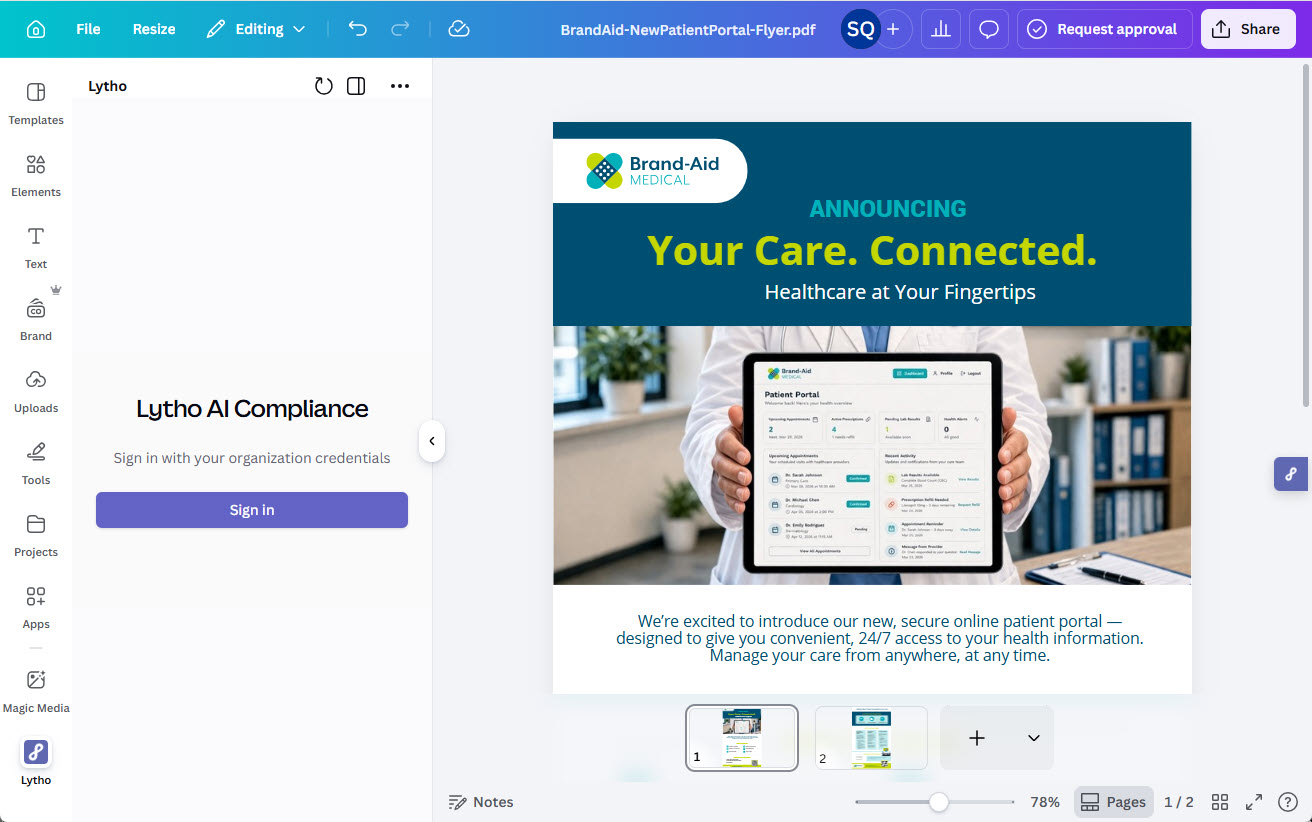
Start by opening a Canva Project. Select the Lytho app in the bottom left panel. The integration panel will open. Select Sign In.
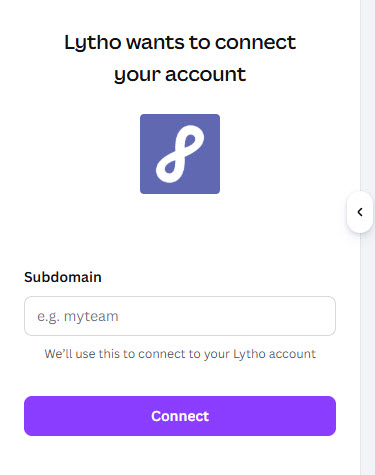
In the extension login screen, enter your Lytho subdomain, then select Connect.
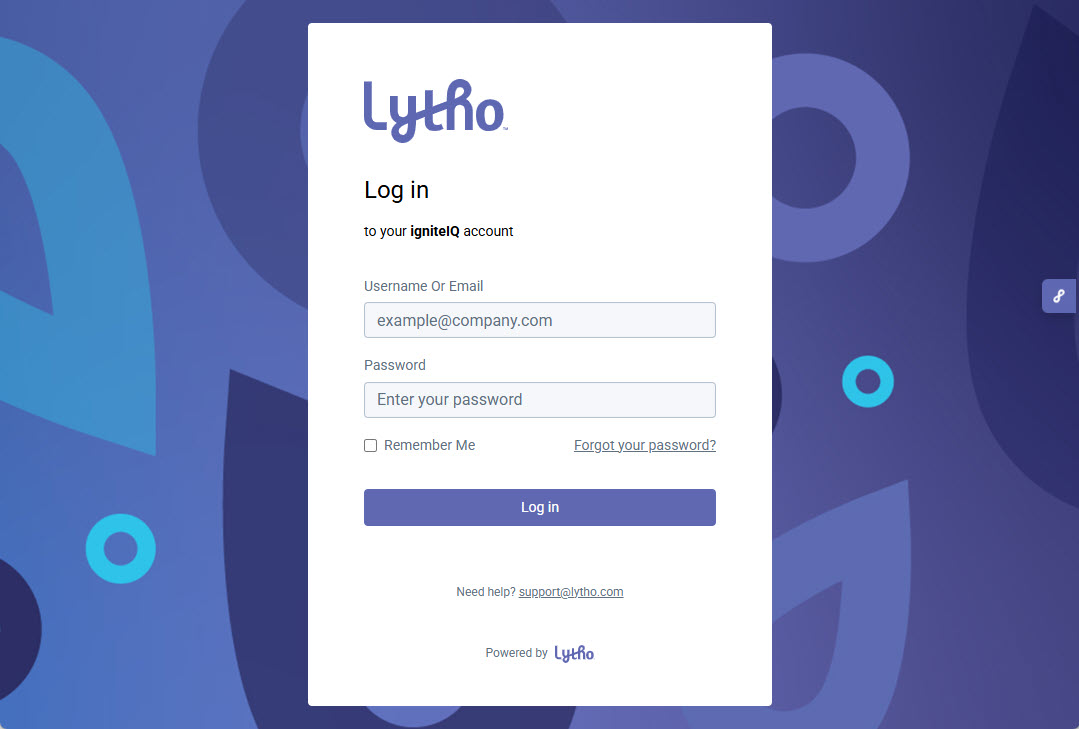
A new browser window will open. Enter your Lytho username or email and your password.
Select Log in.
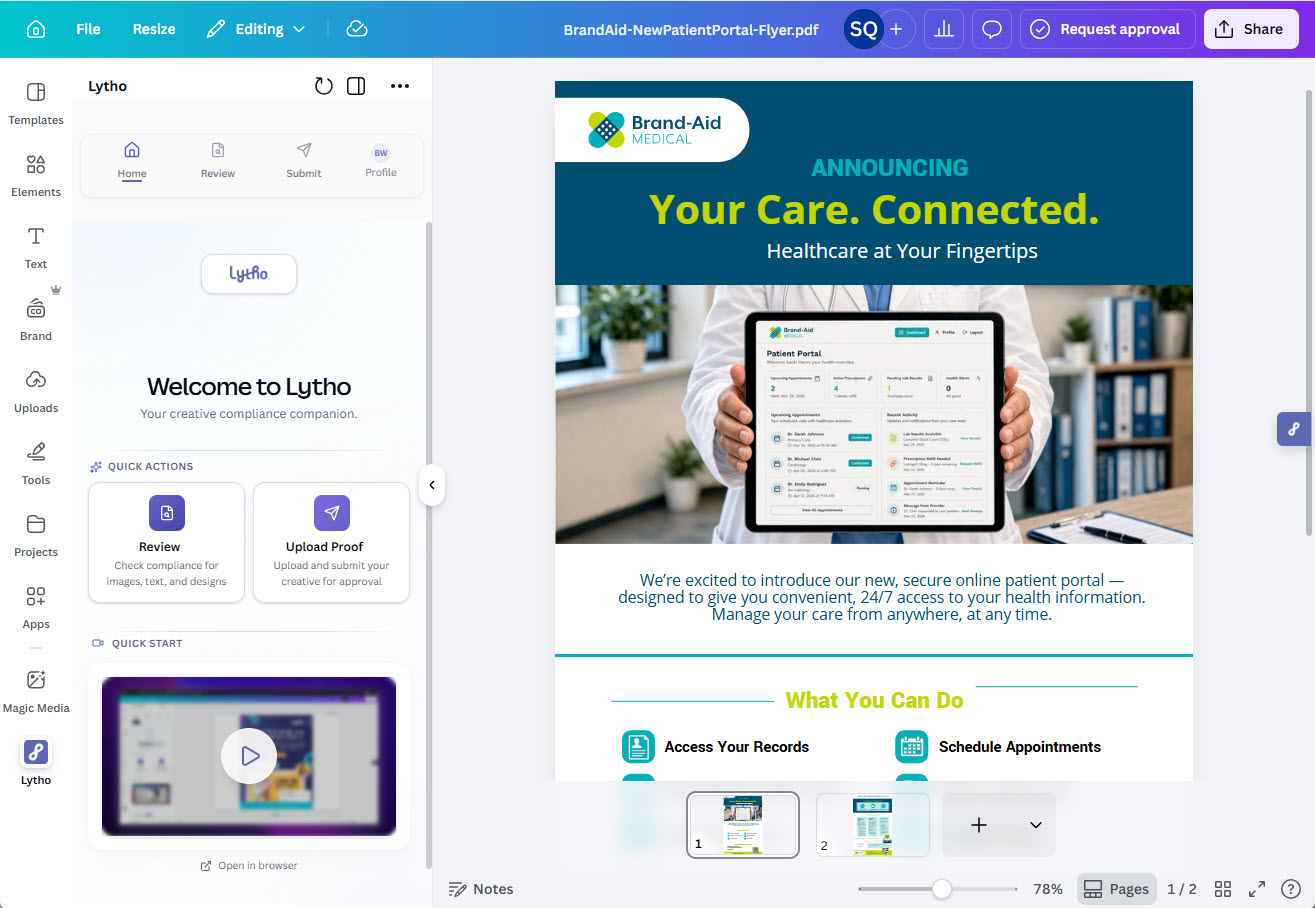
Once logged in, the integration will open to the home screen. You are now ready to begin using the Lytho Canva Integration.
How To Use the Lytho Canva Integration
The Lytho Canva Integration supports two primary actions:
- Review: Check content for brand and regulatory compliance across images, text, and designs
- Upload Proof: Upload and submit assets to Lytho for formal review and approval
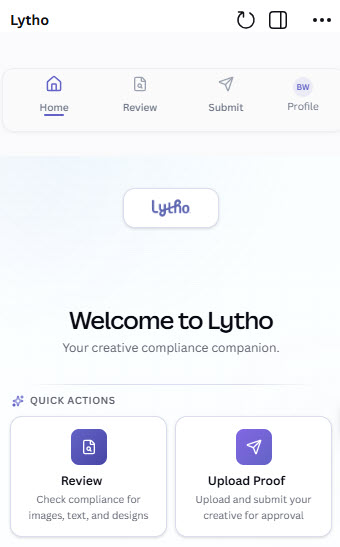
Permissions are respected within the extension. Only Lytho team members with appropriate access can submit Proofs.From the integration home screen, you can:
- Select a Quick Action button for Review or Upload Proof
- Or use the tabs at the top of the extension to navigate between Review and Submit
Review Content
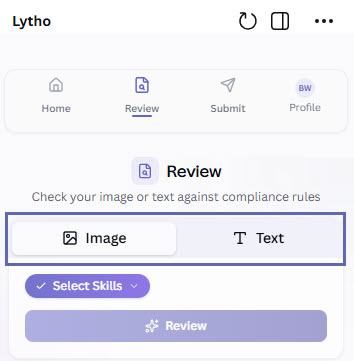
From the home screen, select Review.
Choose the type of content you want to evaluate by selecting the appropriate tab:
- Image: For designs, layouts, and visual assets
- Text: For written content and copy
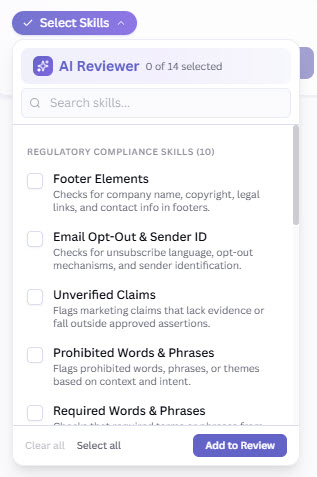
Once you've selected your content type, select the type of compliance check you’d like to run using the Select Skills dropdown. These options are based on the AI Reviewers configured in Lytho. Then select Add to Review.
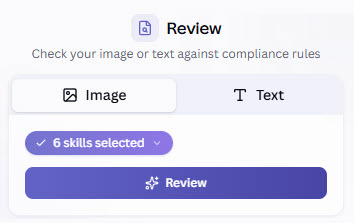
For Images, click Review to export your Canva Project and check your design.
Select a file type of PNG or JPG and which pages of your asset you'd like reviewed. You can also configure additional export options such as asset size, file size limits, compression, and transparency, depending on your Canva plan.
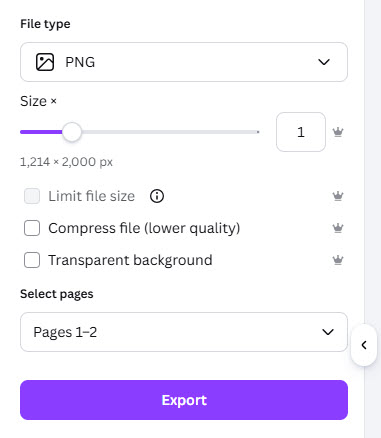
Once your settings are finalized, select Export.
For Text, add content by selecting a text box within your Canva Project. The text will automatically populate in the integration.
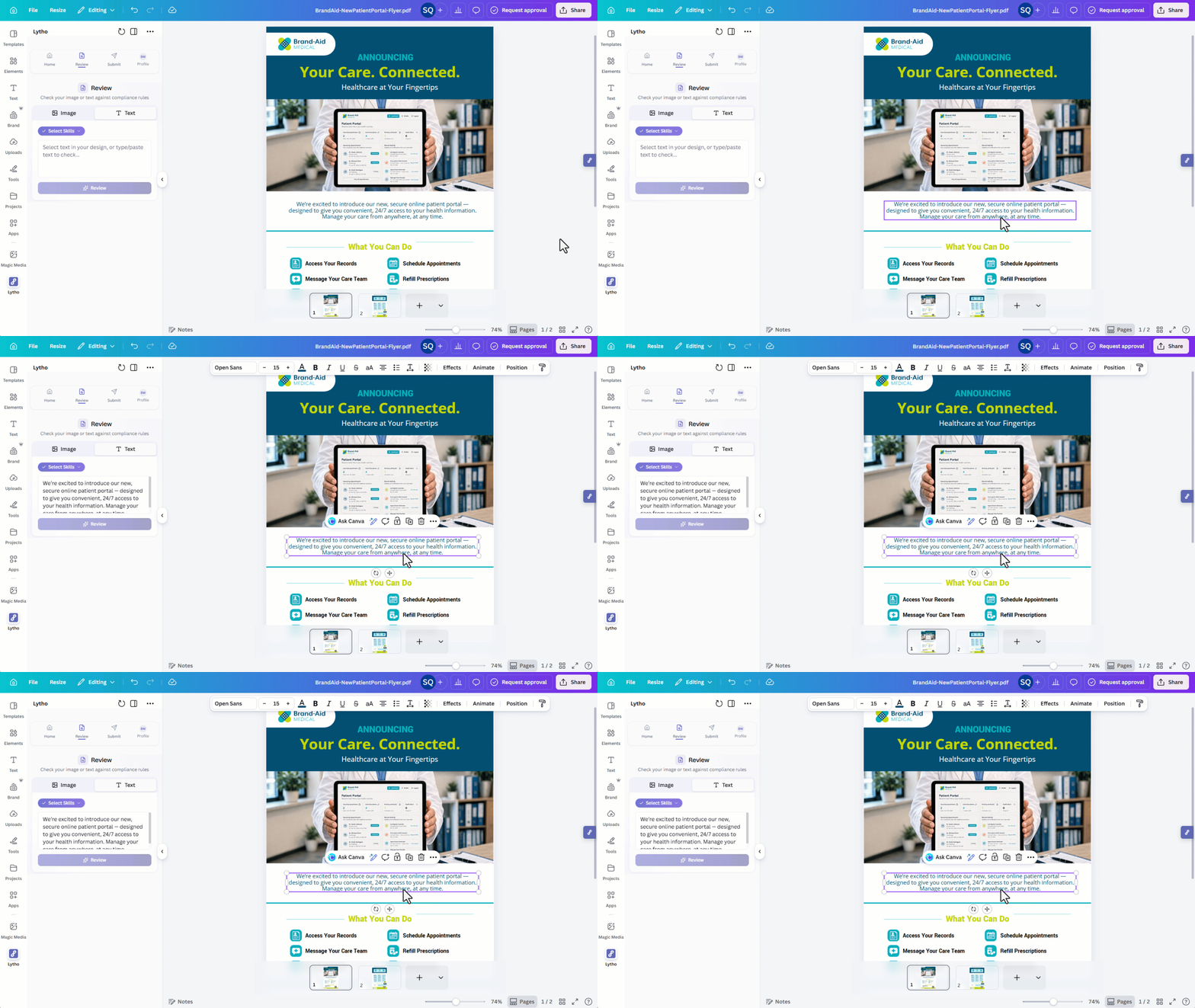
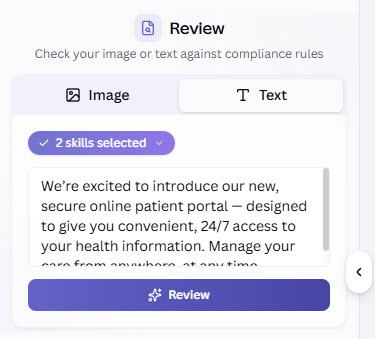
You can also copy and paste content or type directly into the Lytho Canva Integration text box.
Finally, select Review to run the compliance check.
After running a compliance check, your results will be grouped into three finding states:
- Failed: The content does not meet compliance requirements and requires updates.
- Review (Warning): A potential issue was detected, but the AI Reviewer is not fully certain. These should be reviewed carefully, as they may still require updates.
- Pass: The content meets the selected compliance criteria and no issues were detected.
Failed Example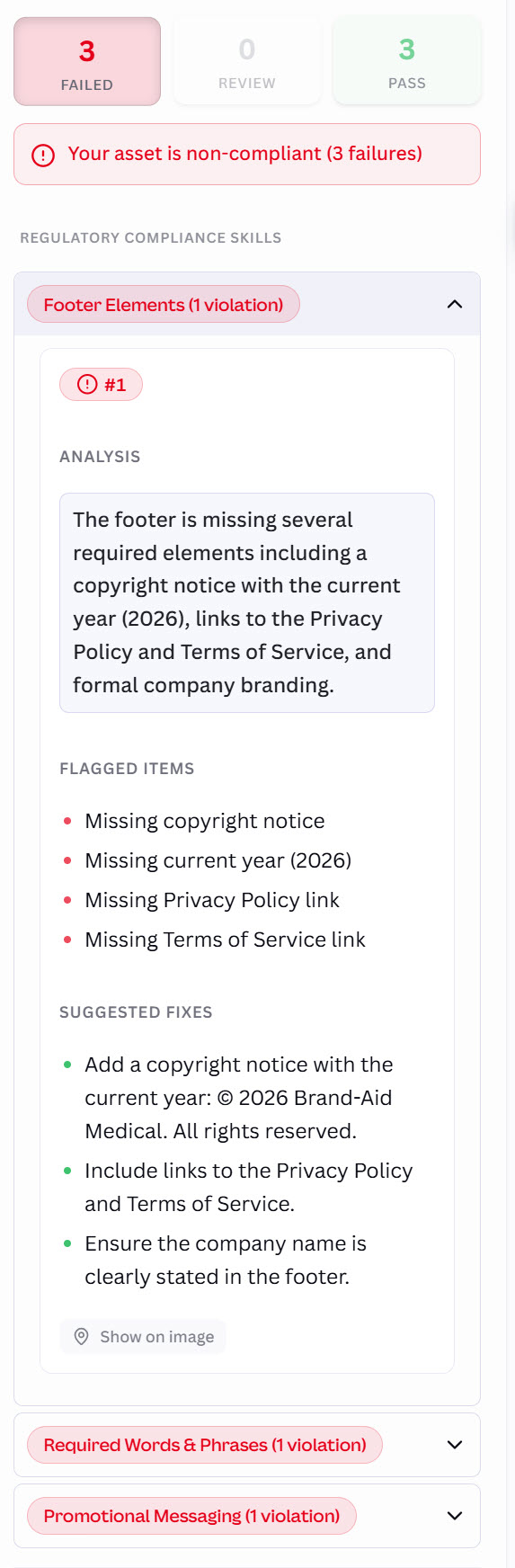
Pass Example 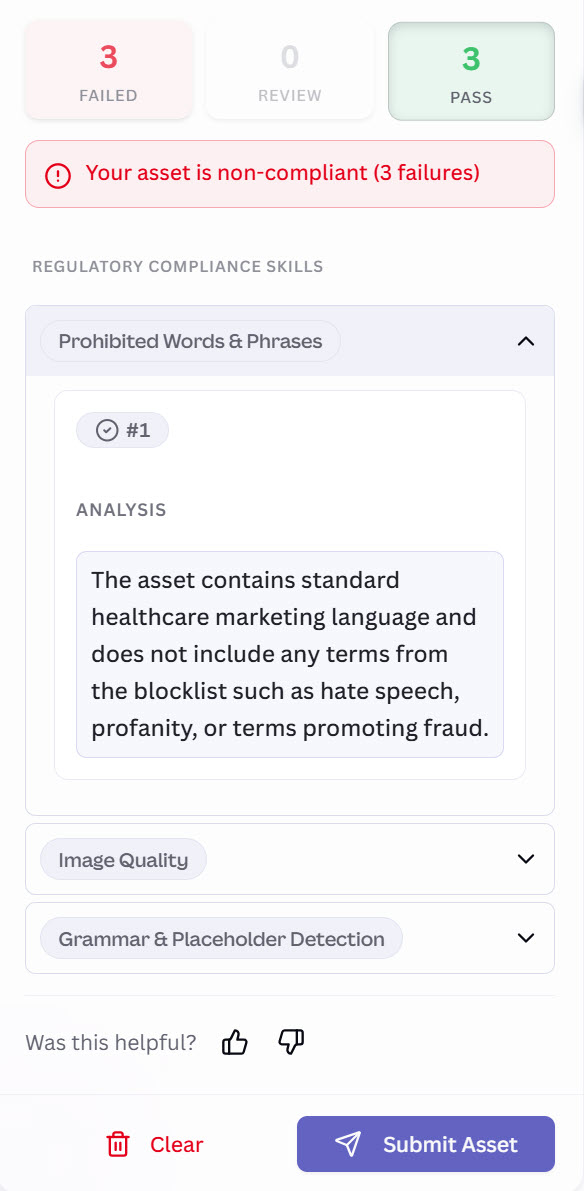
Lytho Pro Tip: Iterate based on compliance check results. Make updates and run your content through the Lytho Canva Integration multiple times to ensure it meets brand and regulatory standards.
Depending on the finding state you select (Failed, Review, or Pass) additional insights will be available, including:
- Analysis – Explanation of why the content passed or was flagged
- Flagged Items – Specific sections of content that were identified
- Suggested Fix – Recommended updates to resolve issues
Additionally, you can Clear the extension to review another asset, or select Submit Asset if you need additional support.

Submit a Proof
From the home screen, select Submit.
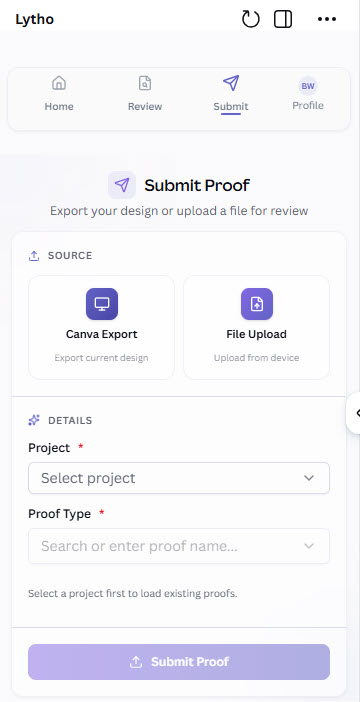
Upload the content you'd like to route through a formal review workflow using one of the following methods:
- Canva Export: Export your current design from Canva
- File Upload: Upload a file from your device
Lytho Pro Tip: While each submission includes one asset, you can continue adding to the same Proof by submitting additional assets separately.
Select a file type of PNG or JPG and which pages of your asset you'd like reviewed. You can also configure additional export options such as asset size, file size limits, compression, and transparency, depending on your Canva plan.
Once your settings are finalized, select Export.
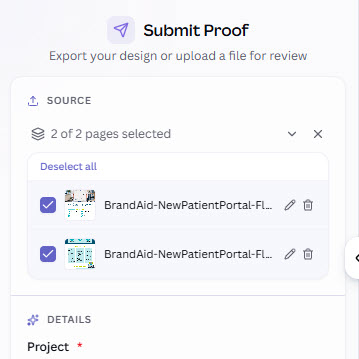
Once your asset is added, select the Lytho Project where the asset should be submitted using the Project dropdown.
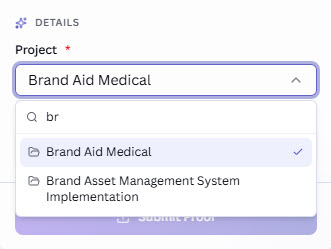
After selecting a Project, available Proofs will be available under the Proof dropdown.
Choose an existing Proof from the list if one already exists.
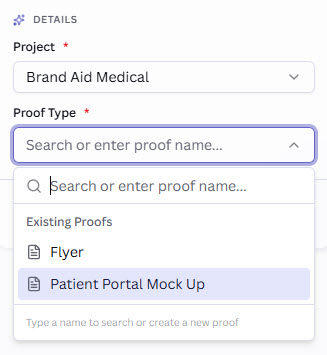
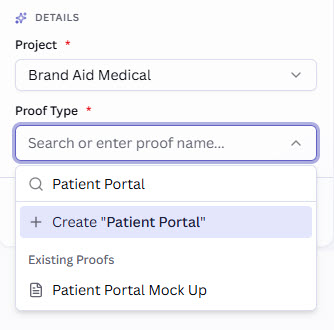
Or begin typing to create a new Proof. As you type, existing Proof names will be suggested for comparison.
Select + Create "Proof name" to create a new Proof if needed.
If a new Proof is created, additional options will appear for Review name, Instructions for reviewers, and Route template. These fields are optional.
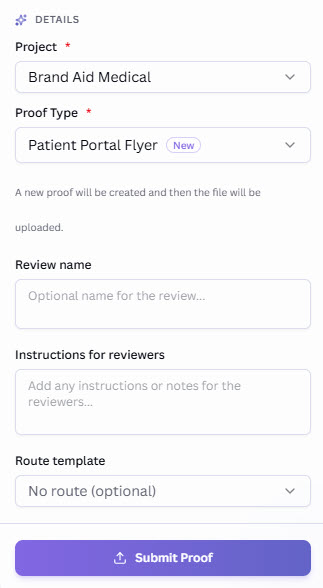
After all required information is entered, select Submit Proof to send the file into Lytho for review.
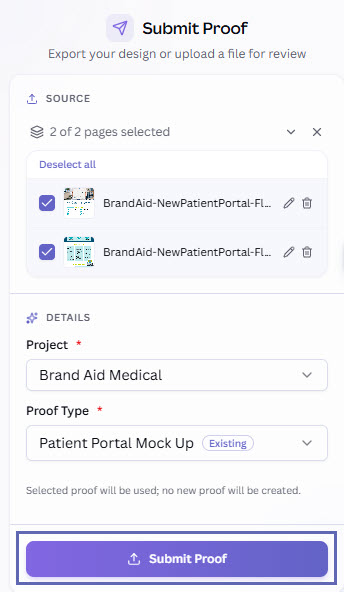
After selecting Upload Proof, you will see a confirmation that your asset has been successfully submitted.
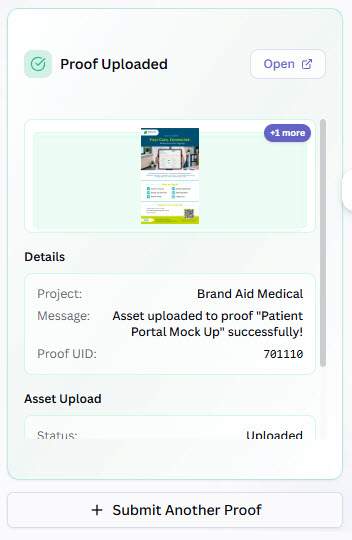
You can select Open to view the associated Proof in Lytho.
Or select + Submit Another Proof to return to the Submit panel and upload another asset.
Submitting an asset does not send the Proof for review. This action only adds the asset to the proof. To route and send the Proof for approval, open the associated Proof in Lytho and follow your review workflow.