Sharing Custom and Calendar Views ensures your team is working for the same perspective, decreasing confusion around what should be worked on next, and fostering alignment between and across teams.
TABLE OF CONTENTS
User Permissions
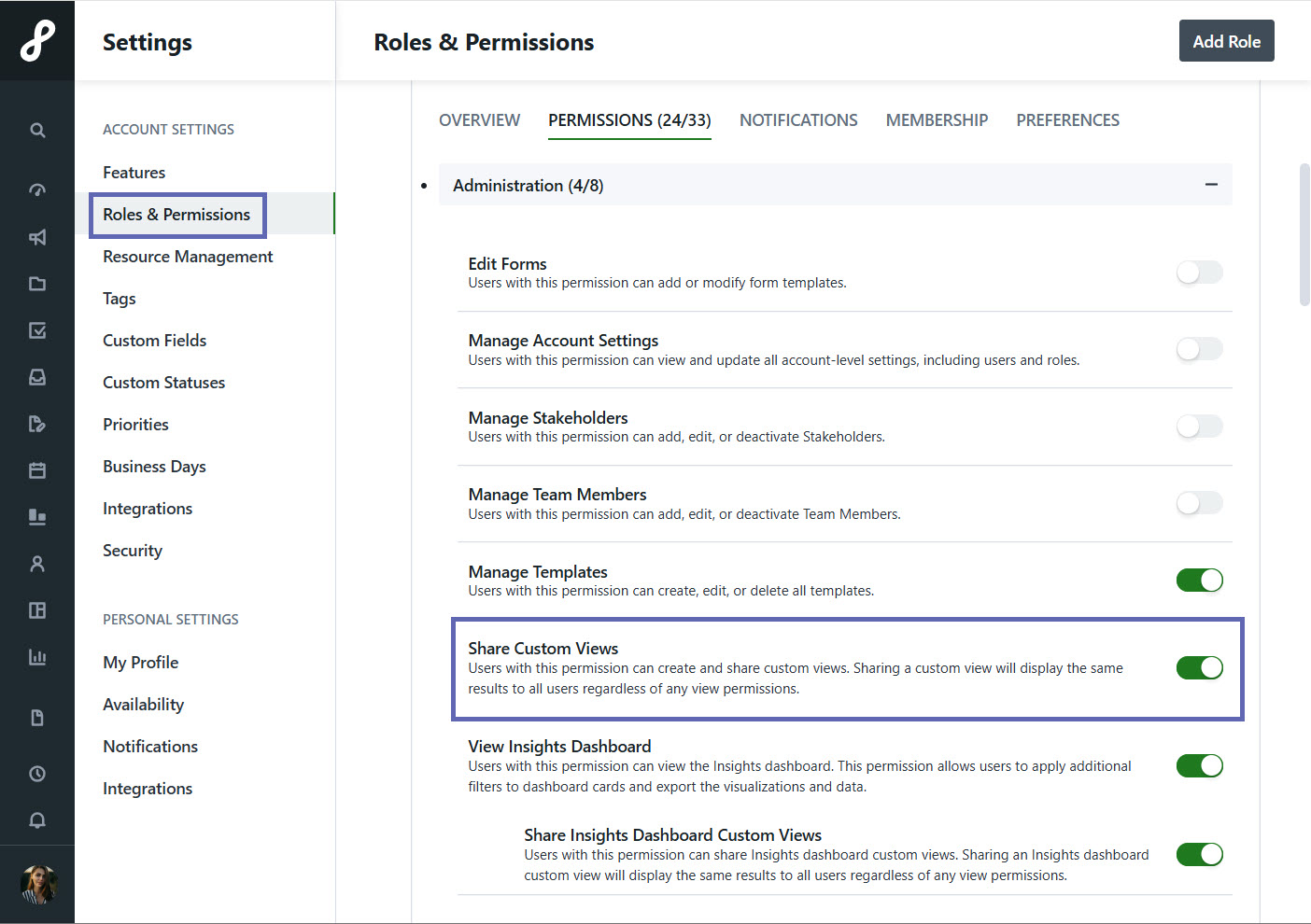
Members with the User Permission to Share Custom Views have the ability to share their views. Custom Views can only be shared by their creators.
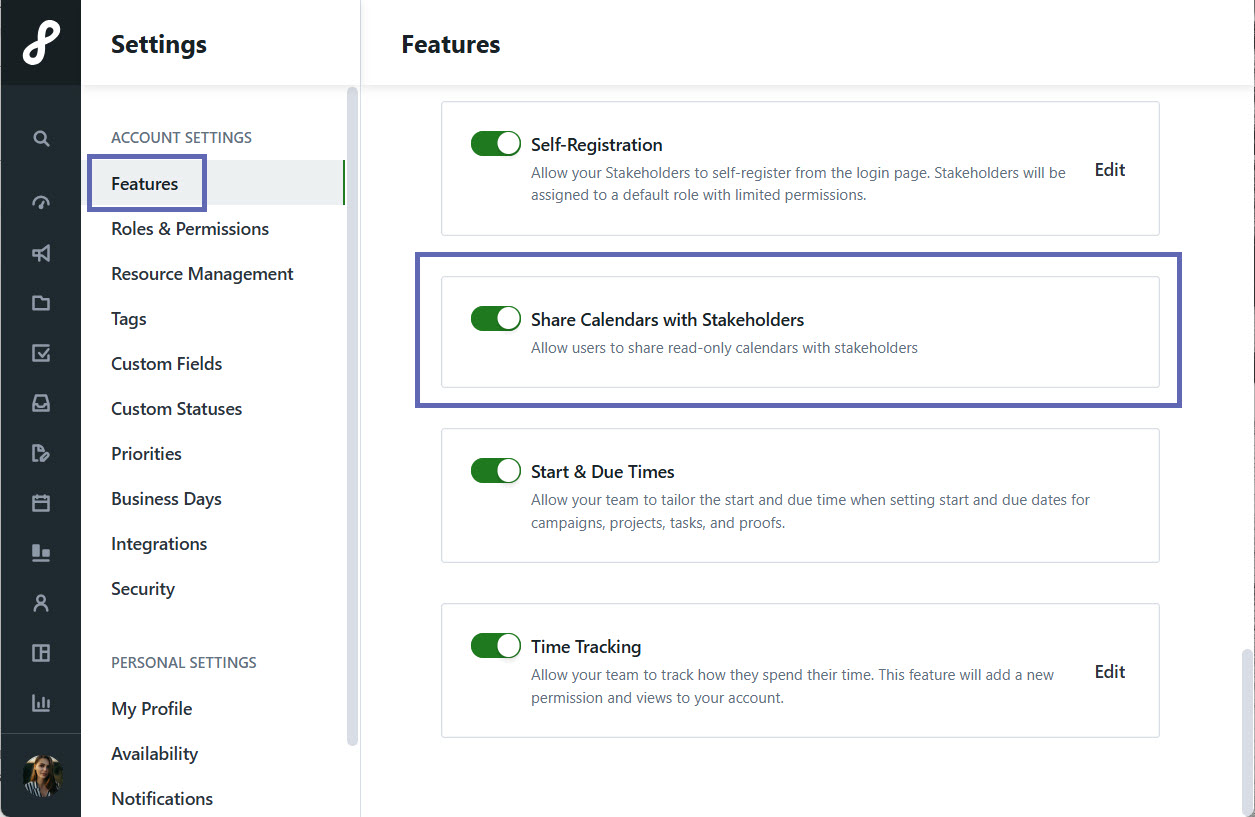
Admins can enable the Share Calendar with Stakeholders feature toggle in Account Settings to allow Calendars to be shared with both Team Members and Stakeholders, expanding visibility and alignment across your organization.
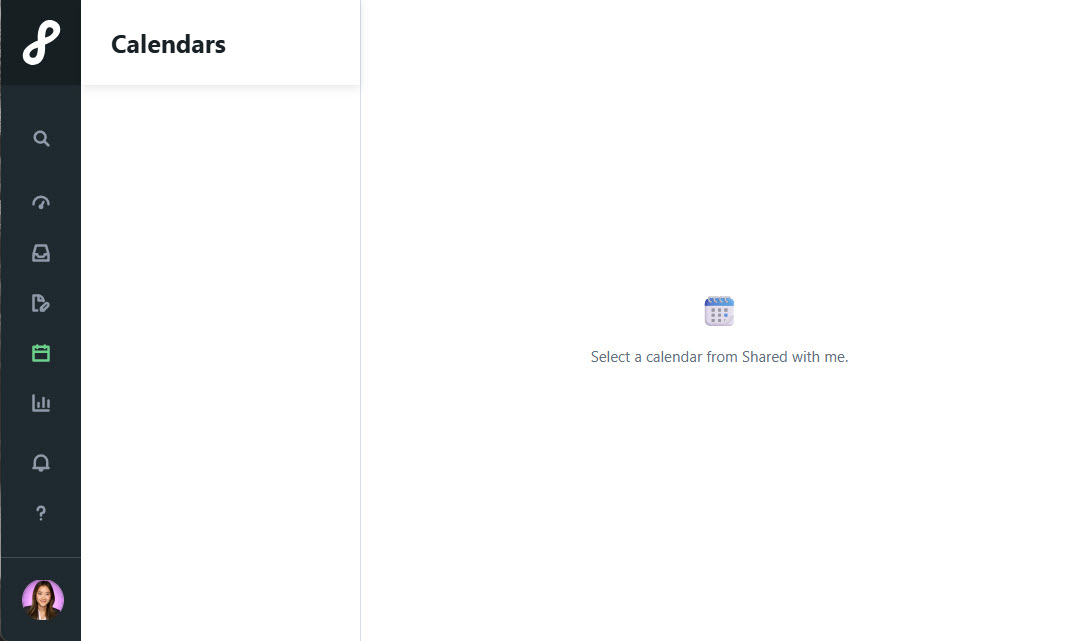
When Share Calendars with Stakeholders is enabled, the Calendar panel will appear as an available option in Stakeholders’ environments.
- Campaign, Project, Work, Request, Calendar, and Workload Custom Views can be shared with Team Members.
- Request and Calendar Custom Views can be shared with Stakeholders
- Each user can only access the information within a shared view if they have the proper permissions
Lytho Pro Tip: Use customized badge colors to make work items easier to identify at a glance!Sharing Views
To share a Custom View or a Calendar View, click on the actions menu in the top right corner of your view and select Share.

Choose the user(s) you want to share your view with from the dropdown list. A green check mark will appear next to your selections. Close the window to confirm your choices.

Once your view has been shared, a new icon will appear indicating the number of people the view is shared with. Select this icon to see who the view is being shared with. You can stop sharing your view by clicking to deselect the user(s).

Views you are currently sharing will appear under SHARED WITH OTHERS on the left side of your workspace.

Viewing Shared Views
Views that have been shared with you will appear under SHARED WITH ME on the left side of your workspace. These can be found in the following panels: Requests, Campaigns, Projects, Work, Calendars, and Workload.

You can update the view type and sort order on views that have been shared with you, except for Calendar views. Any changes you make are temporary and will reset to the original settings once you leave the view, so no permanent updates will be made.

Within the actions menu in the top right corner, you have the ability to leave the view or set as your default view.

Recommended Shared Views
To help get you started creating views for sharing, we've put together a guide for views that can enhance team alignment. Check out our page on Recommended Views for view ideas to create for your individual team members.
| View Name | Role(s) | Purpose | Recommended Filters | Recommended Columns | View Type | View Area |
| Weekly Standup | Team Members | Provide a view of the team's priorities for the week and enable contributors to give status updates. |
|
| Table | Work |
| Upcoming Campaigns/ Projects | Project Managers | To get a wide look at upcoming Campaigns or Projects and determine if resources or expectations need to shift. |
| Gantt | Campaigns or Projects | |
| Team Member PTO | Team Members | To provide access to a specific team members work while they are away, ensuring nothing gets missed. |
| List | Work | |
| Brand Calendar | Social, Brand, and Communication teams | To keep everyone aligned on when content is going live. |
| Calendar or Gantt | Calendars or Work | |
| Multi-Project Kick-off | Project Members | To align on work items and due dates needed to complete a project. |
|
| Table | Work |
| Specialties | Groups of specialty team members like Graphic Designers or Videographers. | Maintain alignment between team members with similar roles to foster collaboration and prevent duplicate work. |
| Work | Calendar | |
| Team Workload | Team Members | To provide transparency into and alignment of team workloads for resourcing. |
| Workload | Workload |