The Lytho Chrome Extension brings AI-powered compliance and brand governance directly into the tools your team already uses. Whether you're working in Microsoft Word or PowerPoint, Figma, your CMS, social platforms, or other browser-based tools, you can instantly check content against your organization’s standards before it goes live, or send it through more formal review workflows when human input or audit trails are required.
By enabling real-time feedback with suggested fixes, the Lytho Chrome Extension helps teams reduce rework, ensure brand consistency, and catch compliance issues earlier in the process. At the same time, it supports more structured review processes when needed, giving teams the flexibility to move quickly while still maintaining oversight. Because it uses the same AI Reviewers configured in Lytho, your standards stay consistent across every tool and workflow, while your team remains in control of final decisions.
Features described in this article are not included in all subscription plans. Interested in expanding your feature set? Contact the Lytho Support Team for further assistance.TABLE OF CONTENTS
- Prerequisites
- How to Install the Lytho Chrome Extension
- Logging Into the Lytho Chrome Extension
- How To Use the Lytho Chrome Extension
- Where Can I Use the Lytho Chrome Extension?
Prerequisites
Before using the Lytho Chrome Extension, ensure the following is in place:
- AI Reviewers are configured in your Lytho account. The Lytho Chrome Extension uses the same AI Reviewers and rules defined in Lytho. If AI Reviewers are not set up, the extension will not have the knowledge required to run checks.
- User has an active Lytho account. Users must be able to log in with their Lytho credentials to access reviewers and submit content to workflows.
How to Install the Lytho Chrome Extension
- Visit the Lytho for Chrome extension page.
- Click Add to Chrome
- Confirm by clicking Add extension
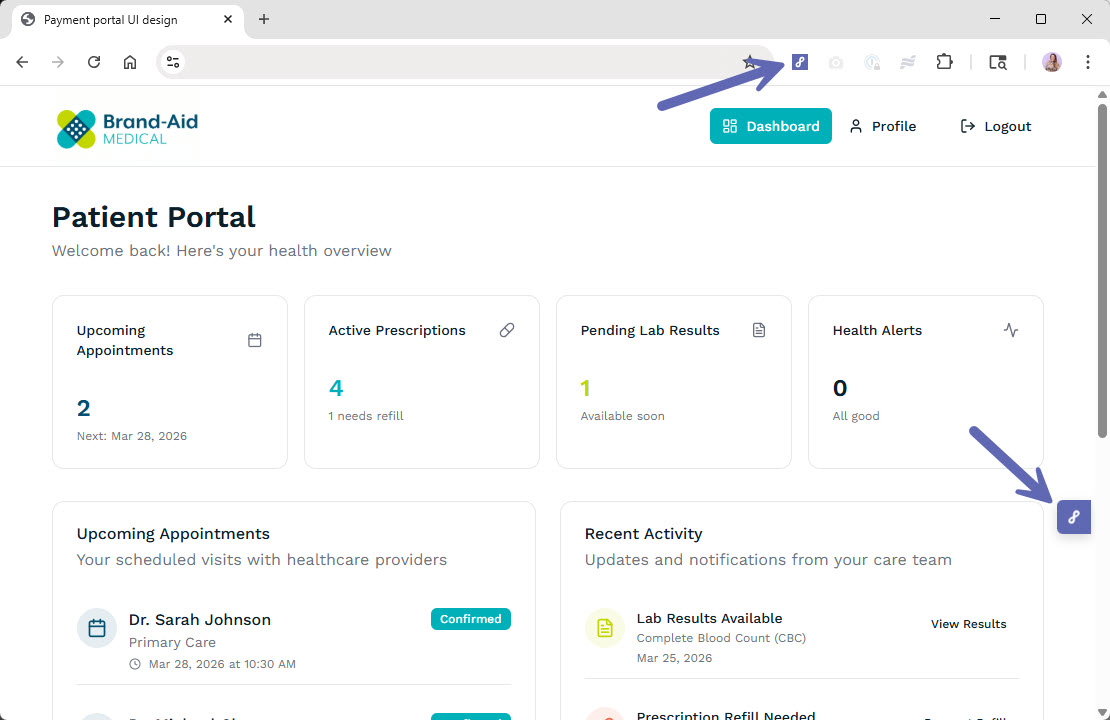
- Once installed, click the Extensions icon in your browser toolbar
- Pin the Lytho Chrome Extension for easy access
Logging Into the Lytho Chrome Extension
Start by opening the Lytho Chrome Extension using one of the following options:
- Select the Extensions icon in your browser toolbar and click the Lytho Chrome Extension
- Select the floating Lytho icon on the right side of your screen
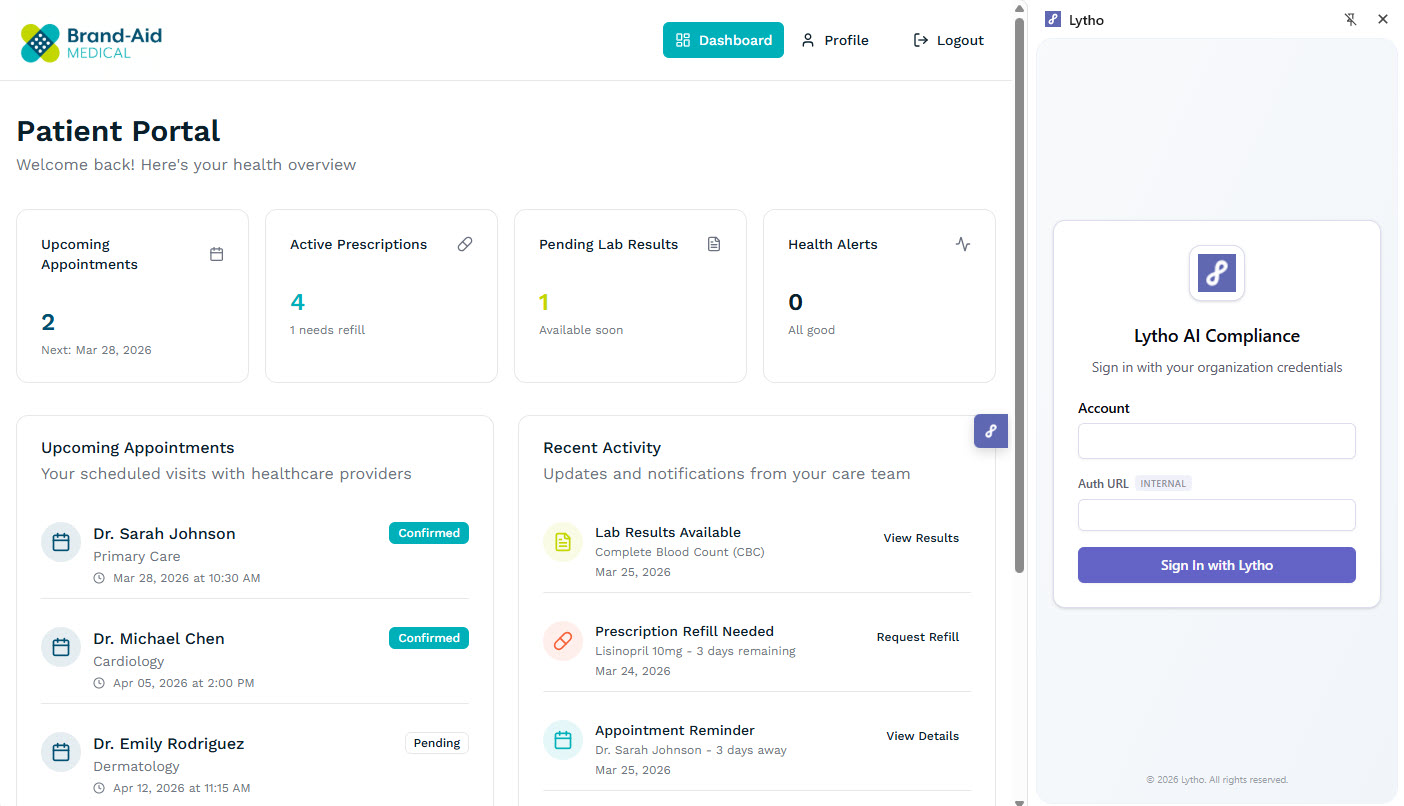
The extension panel will open.
In the extension login screen, enter the following:
- Account: Your Lytho subdomain
- Auth URL: This field is preconfigured — no changes needed
Select Sign In with Lytho.
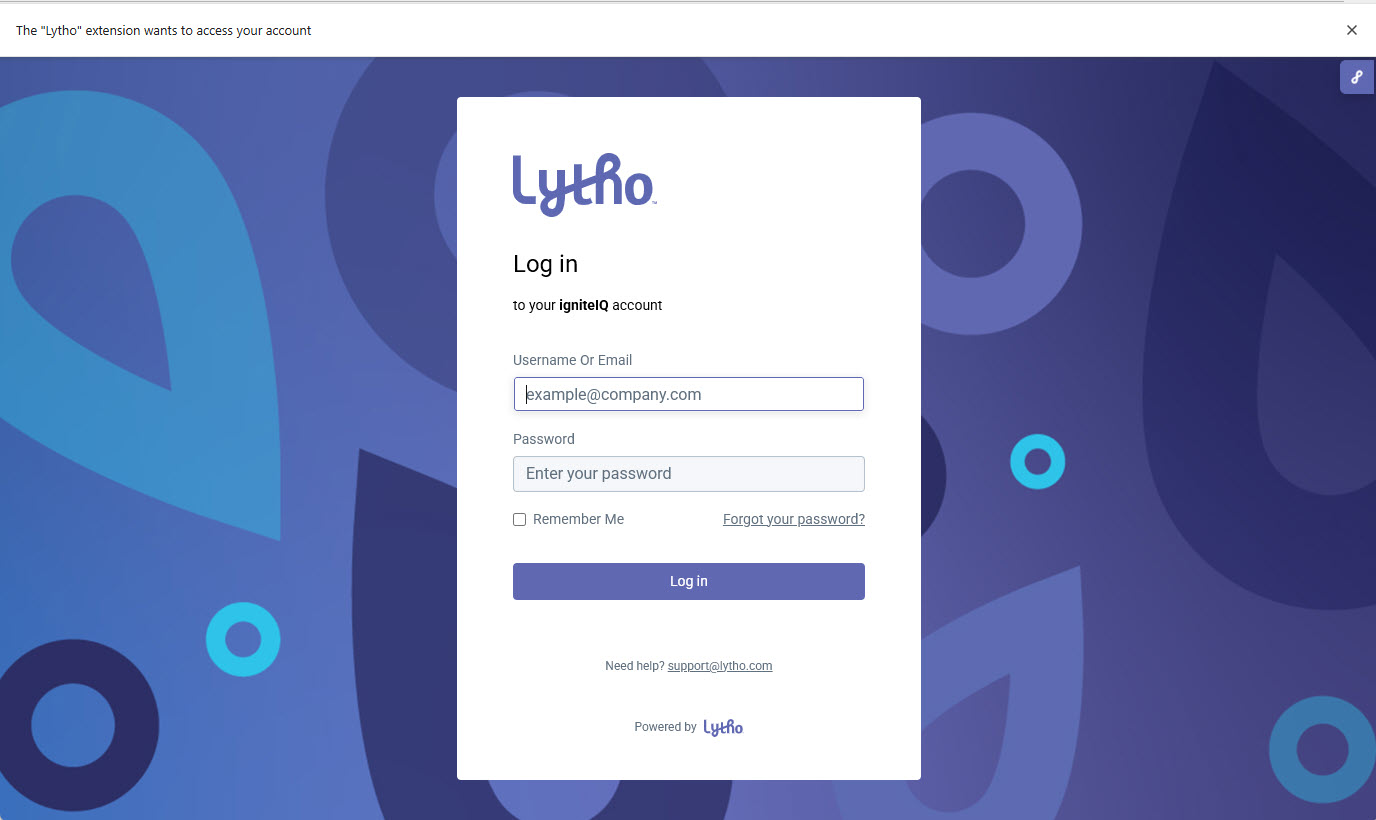
A new browser window will open. Log in using Single Sign-On (SSO), or enter your Lytho username or email and password.
Select Log in.
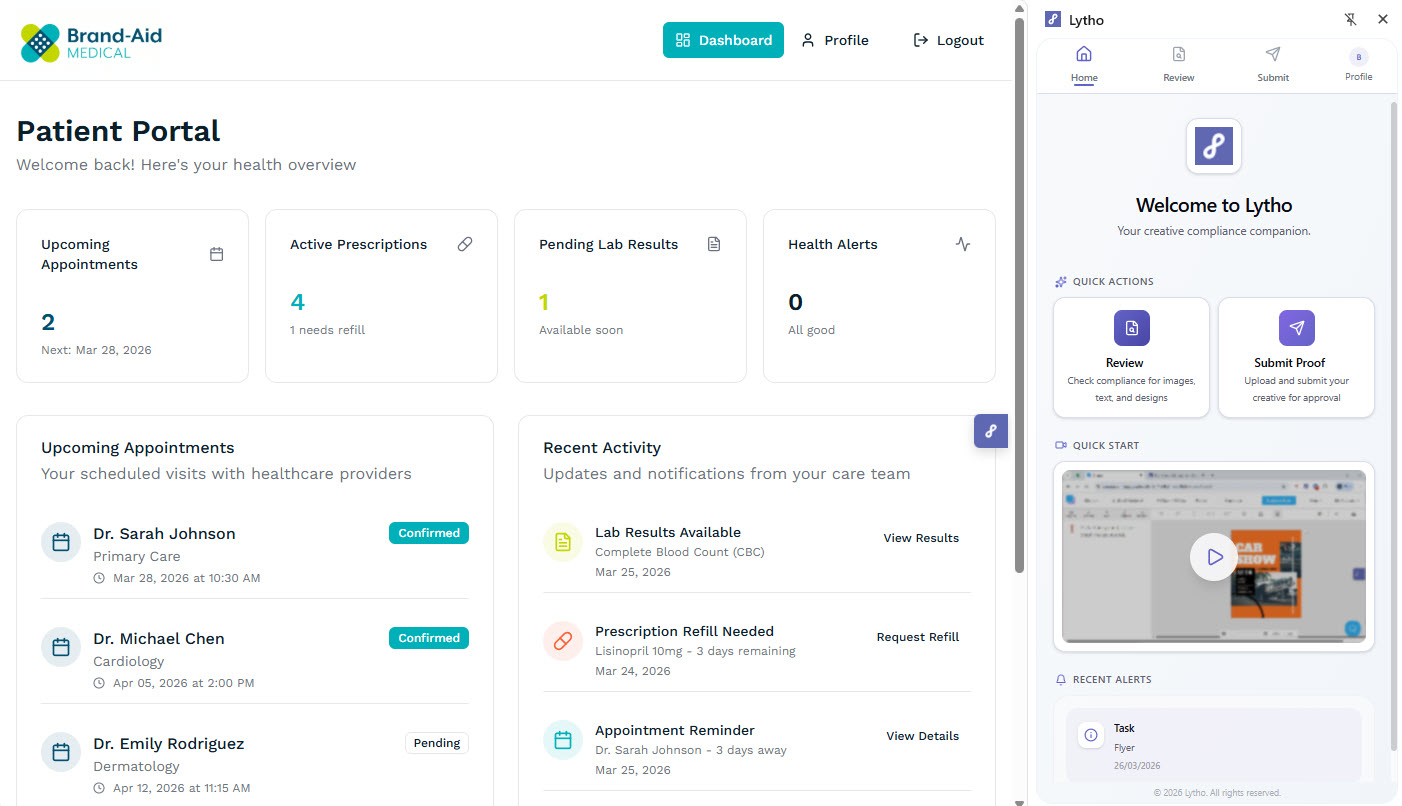
Once logged in, the extension will open to the home screen. You are now ready to begin using the Lytho Chrome Extension.
How To Use the Lytho Chrome Extension
The Lytho Chrome Extension supports two primary actions:
- Review: Check content for brand and regulatory compliance across images, text, and designs
- Submit Proof: Upload and submit assets to Lytho for formal review and approval
Permissions are respected within the extension. Only Lytho team members with appropriate access can submit Proofs.From the extension home screen, you can:
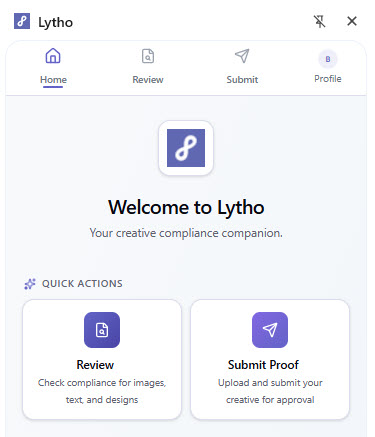
- Select a Quick Action button for Review or Submit Proof
- Or use the tabs at the top of the extension to navigate between Review and Submit
Review Content
From the home screen, select Review.
Choose the type of content you want to evaluate:
- Image: For designs, layouts, and visual assets
- Text: For written content and copy
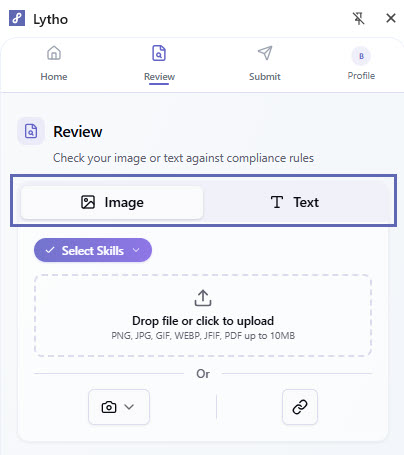
For Images, you'll upload an asset using one of the methods outlined in the Uploading Content to the Lytho Chrome Extension section below.
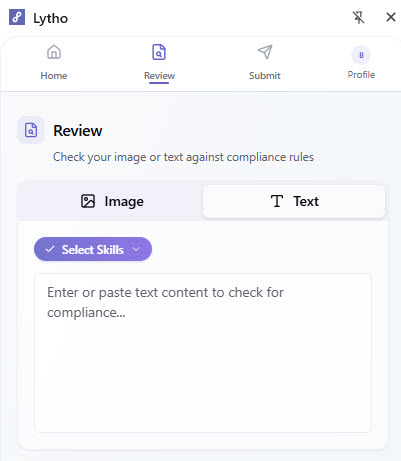
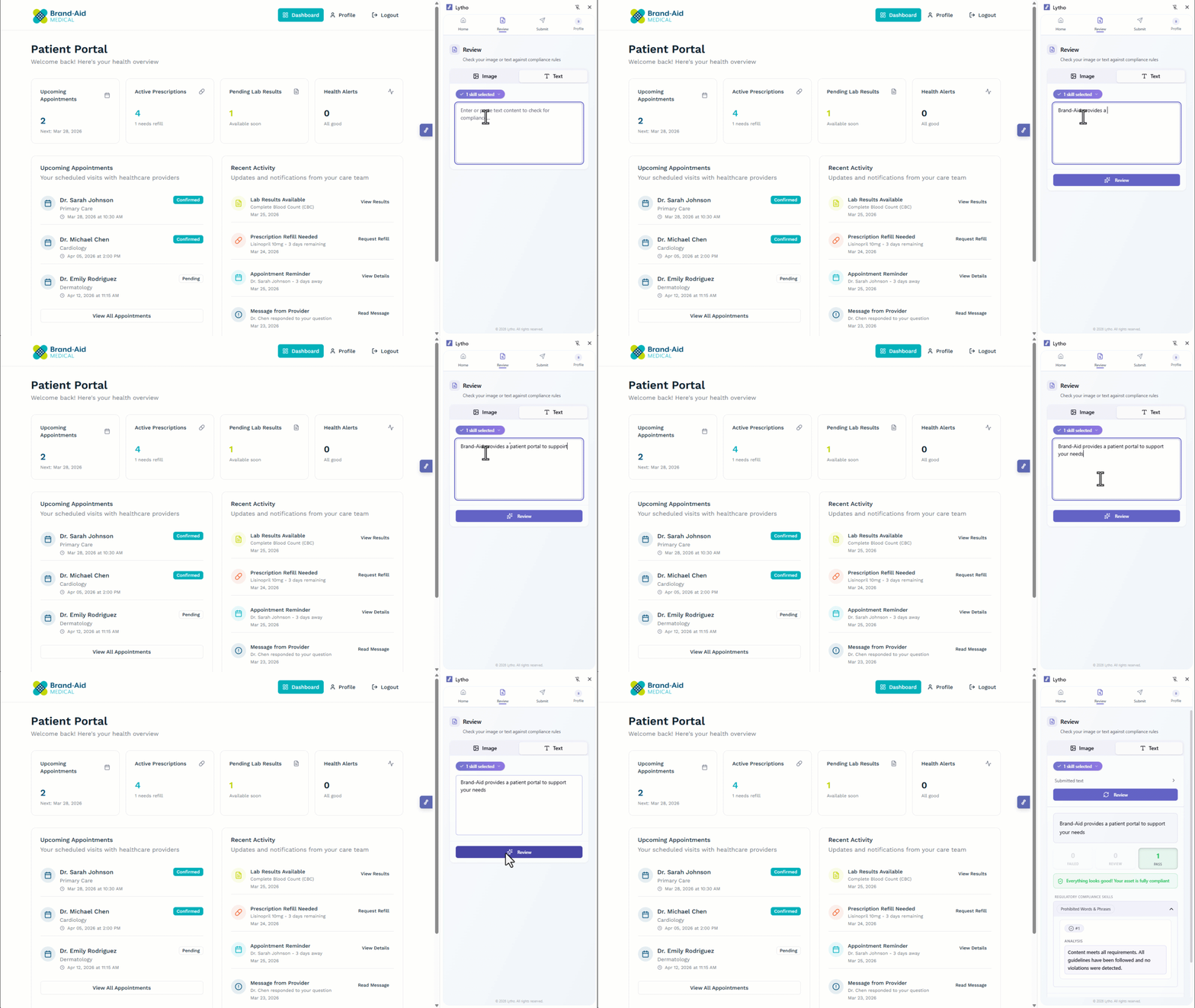
To review written content, first select the Text tab.
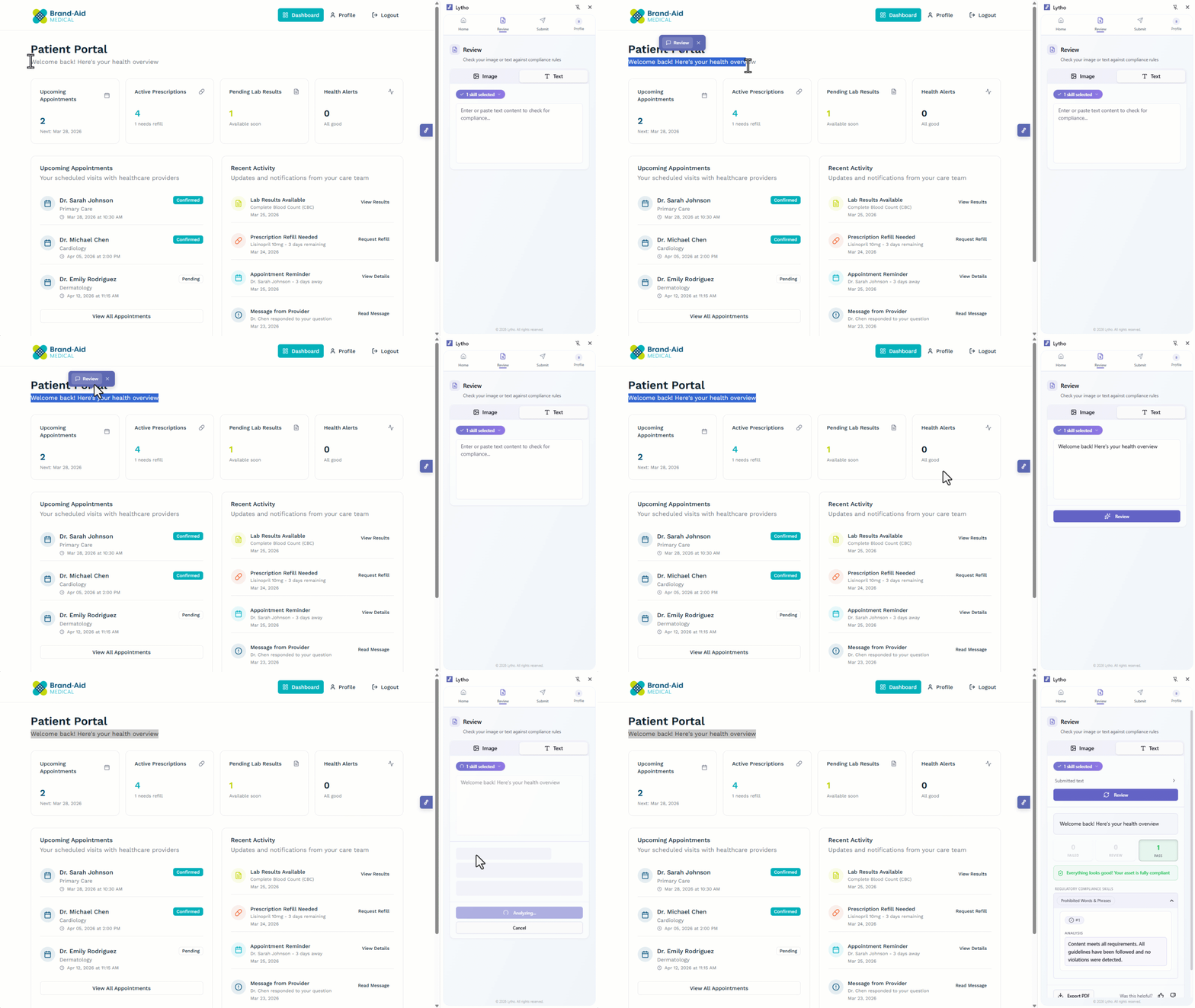
Add content by highlighting text within your asset in the browser. Once highlighted, a tooltip will appear. Select Review, and the text will automatically populate in the extension.
You can also copy and paste content or type directly into the Lytho Chrome Extension text box.
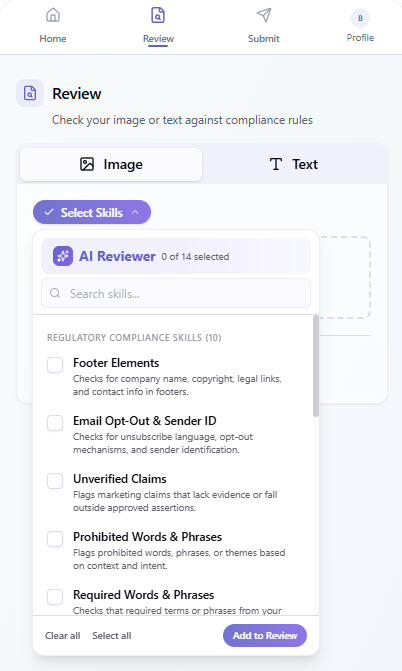
Once your content is added, select the type of compliance check you’d like to run using the Reviewer dropdown. These options are based on the AI Reviewers configured in Lytho.
Finally, select Review to run the compliance check.
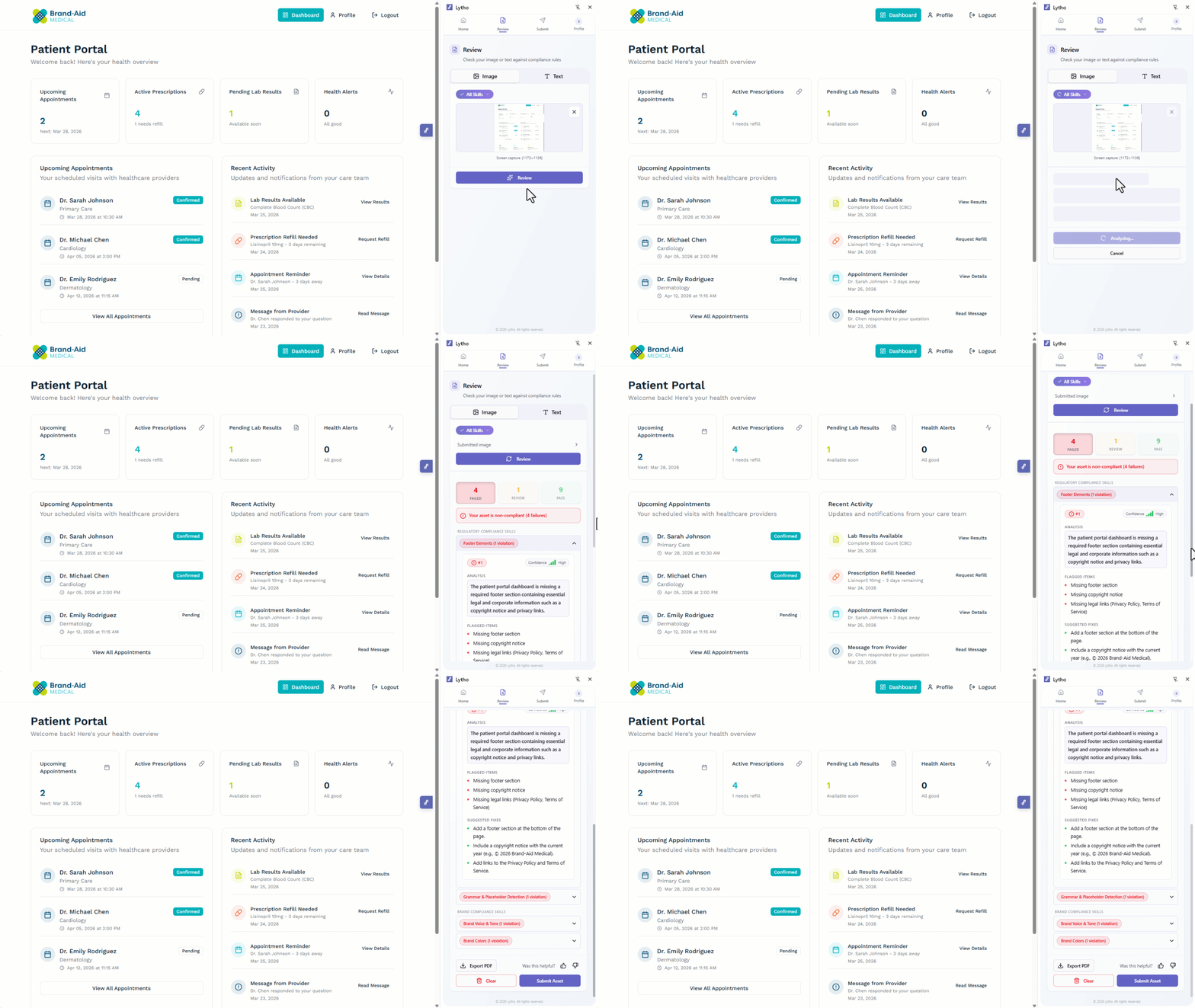
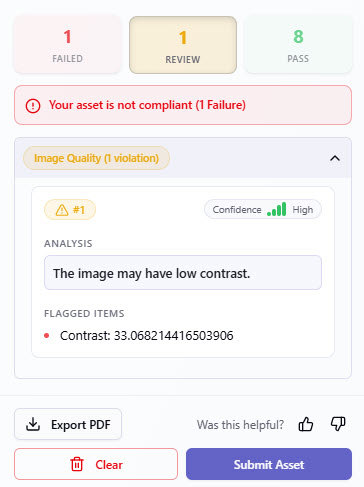
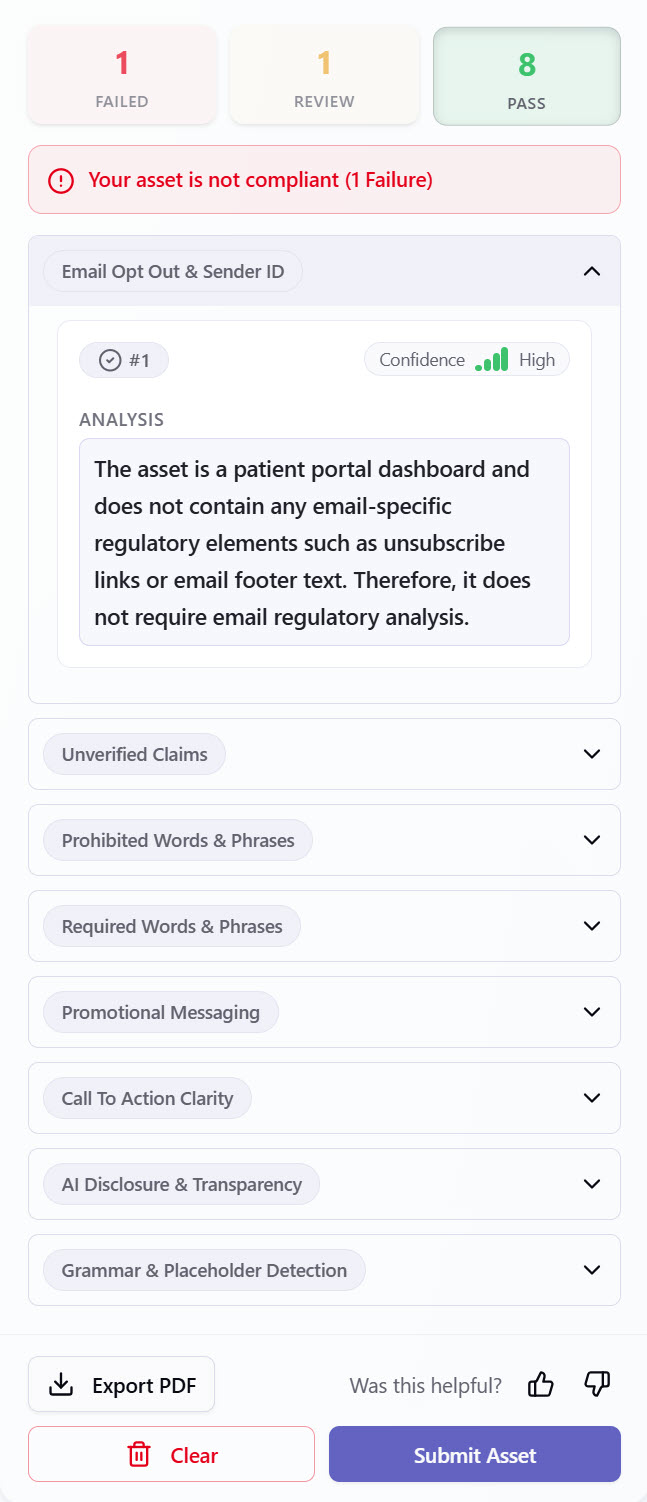
After running a compliance check, your results will be grouped into three finding states:
- Failed: The content does not meet compliance requirements and requires updates.
- Review (Warning): A potential issue was detected, but the AI Reviewer is not fully certain. These should be reviewed carefully, as they may still require updates.
- Pass: The content meets the selected compliance criteria and no issues were detected.
Failed Example
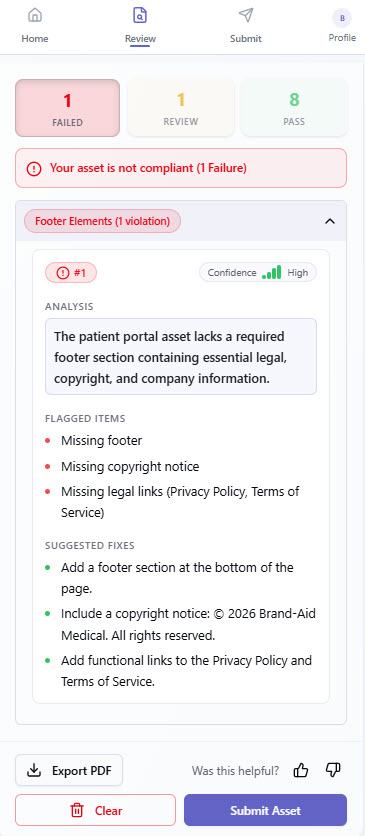
Review Example
Pass Example
Lytho Pro Tip: Iterate based on compliance check results. Make updates and run your content through the Lytho Chrome Extension multiple times to ensure it meets brand and regulatory standards.
Depending on the finding state you select (Failed, Review, or Pass) additional insights will be available, including:
- Confidence Rating – How certain the AI is in its assessment
- Analysis – Explanation of why the content passed or was flagged
- Flagged Items – Specific sections of content that were identified
- Suggested Fix – Recommended updates to resolve issues
Within all finding states, you have the option to Export PDF, which downloads a version of the compliance report. This report includes the asset reviewed along with insights across each finding state.
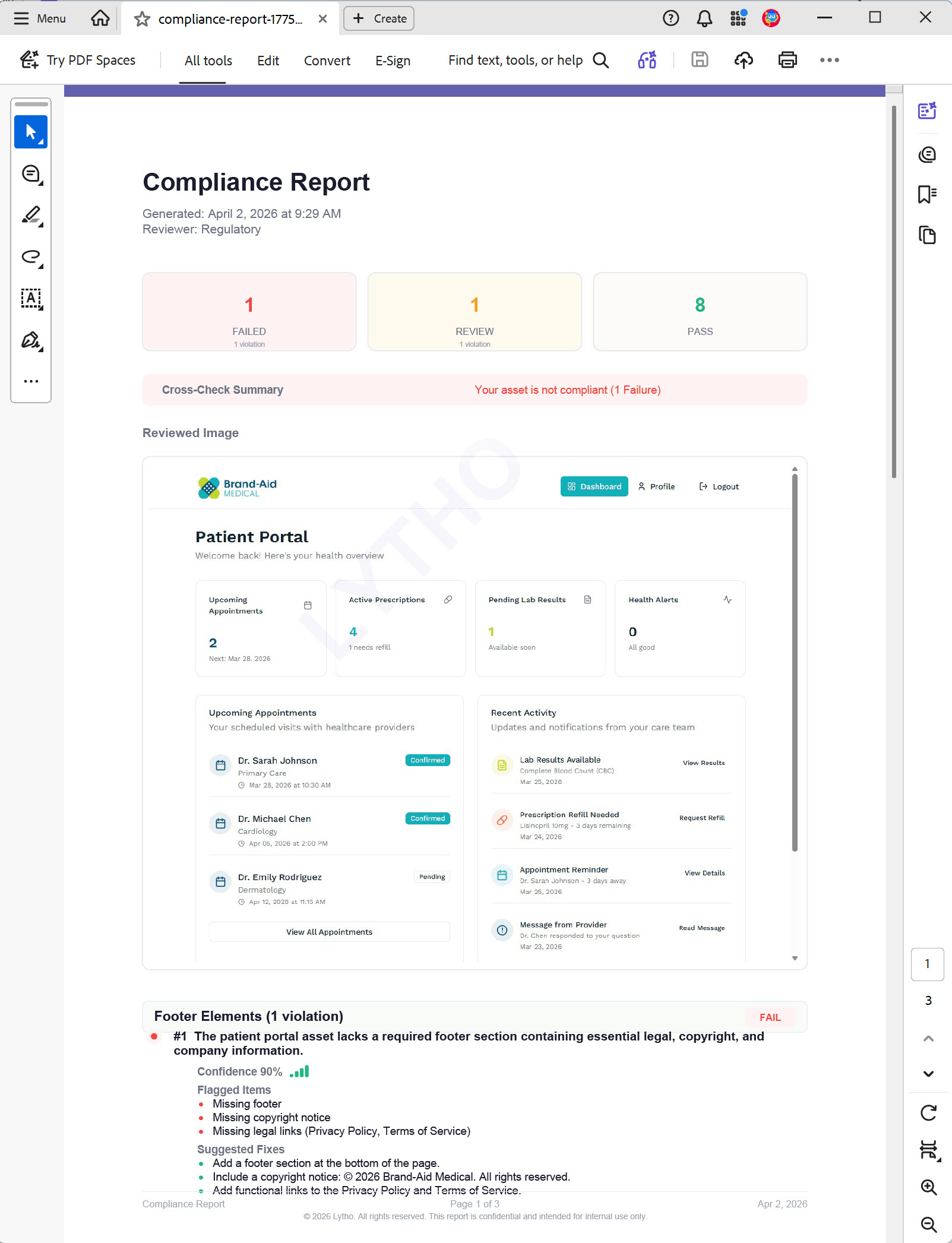
Additionally, you can Clear the extension to review another asset, or select Submit Asset if you need additional support.
Submit a Proof
From the home screen, select Submit.
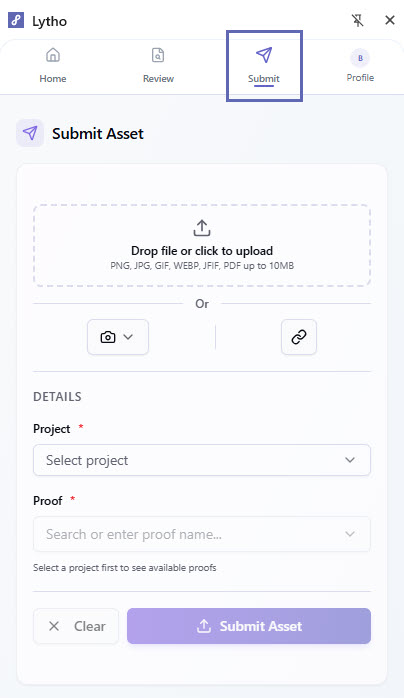
Then upload the content you'd like to route through a formal review workflow using one of the methods outlined in the Uploading Content to the Lytho Chrome Extension section below.
Once your asset is added, select the Lytho Project where the asset should be submitted using the Project dropdown.
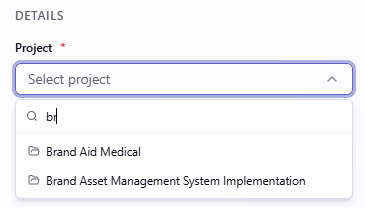
After selecting a Project, available Proofs will be available under the Proof dropdown.
Choose an existing Proof from the list if one already exists.
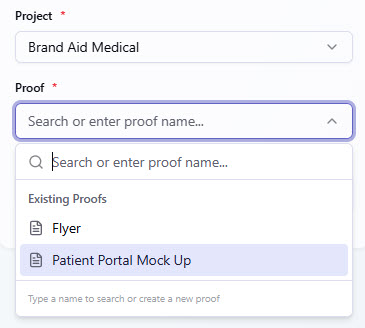
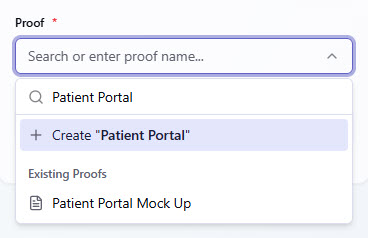
Or begin typing to create a new Proof. As you type, existing Proof names will be suggested for comparison.
Select + Create "Proof name" to create a new Proof if needed.
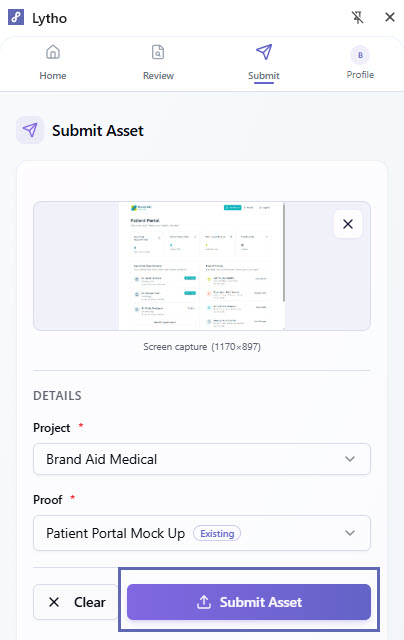
After all required information is entered, select Submit Asset to send the file into Lytho for review.
After selecting Submit Asset, you will see a confirmation that your asset has been successfully submitted.
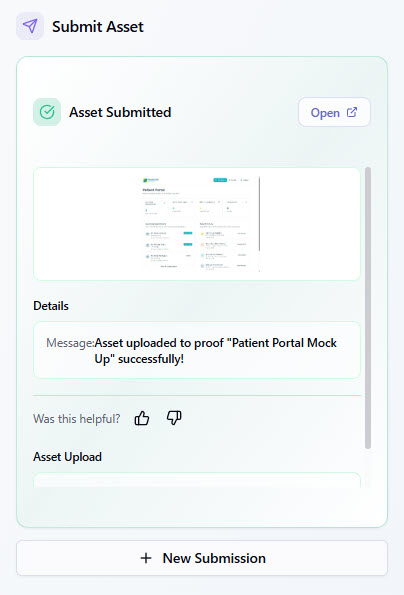
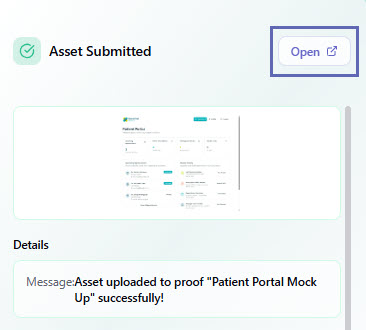
You can select Open to view the associated Project in Lytho.
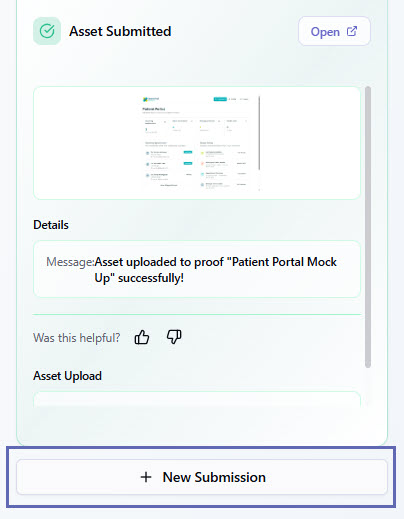
Or select + New Submission to return to the Submit panel and upload another asset.
Submitting an asset does not send the Proof for review. This action only adds the asset to the proof. To route and send the Proof for approval, open the associated Proof in Lytho and follow your review workflow.Uploading Content to the Lytho Chrome Extension
Whether you are reviewing content or submitting a Proof, the options for uploading content are the same. Use one of the following methods:
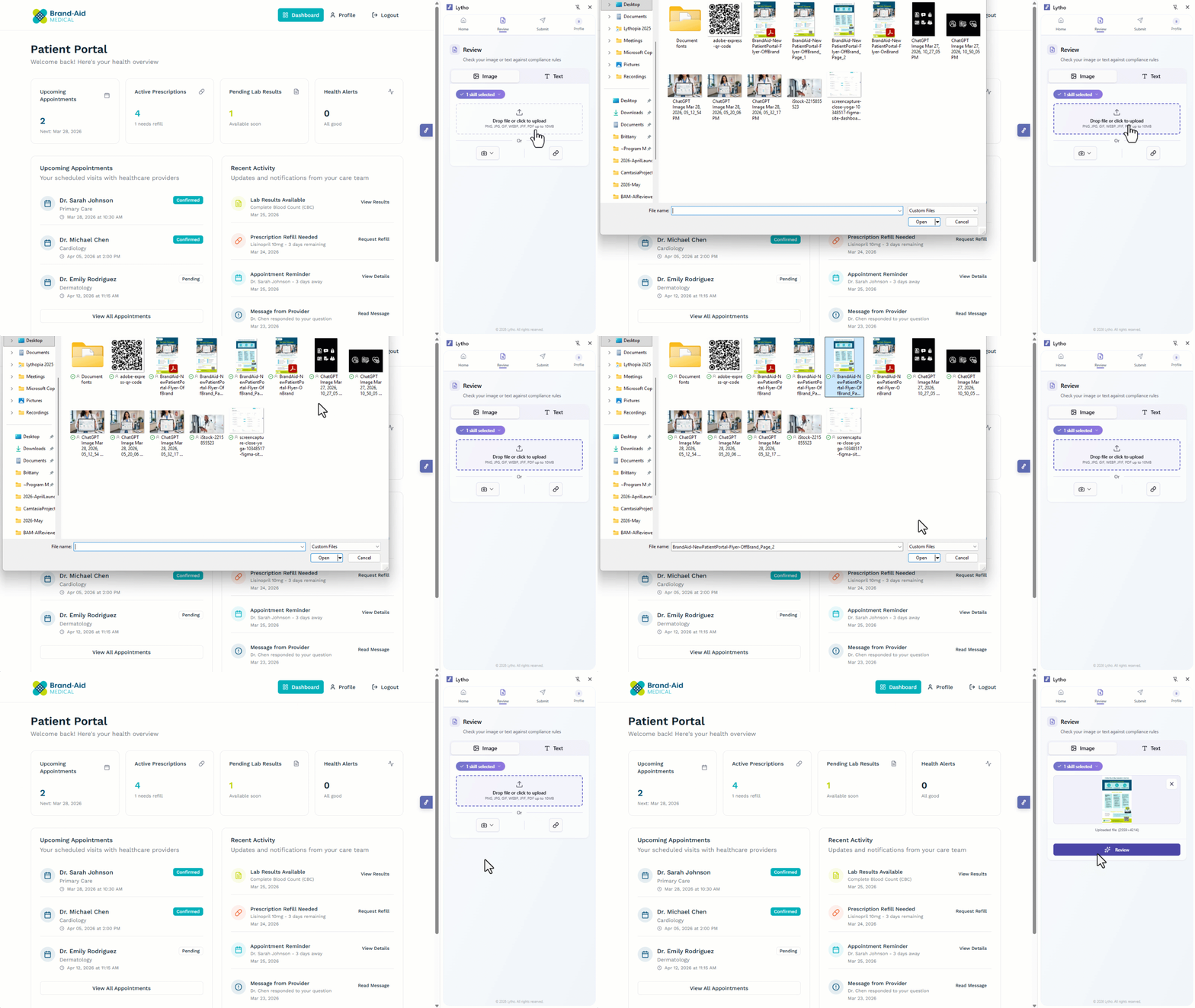
- Drag and drop a file into the upload area
- Select the upload area to choose a file from your device
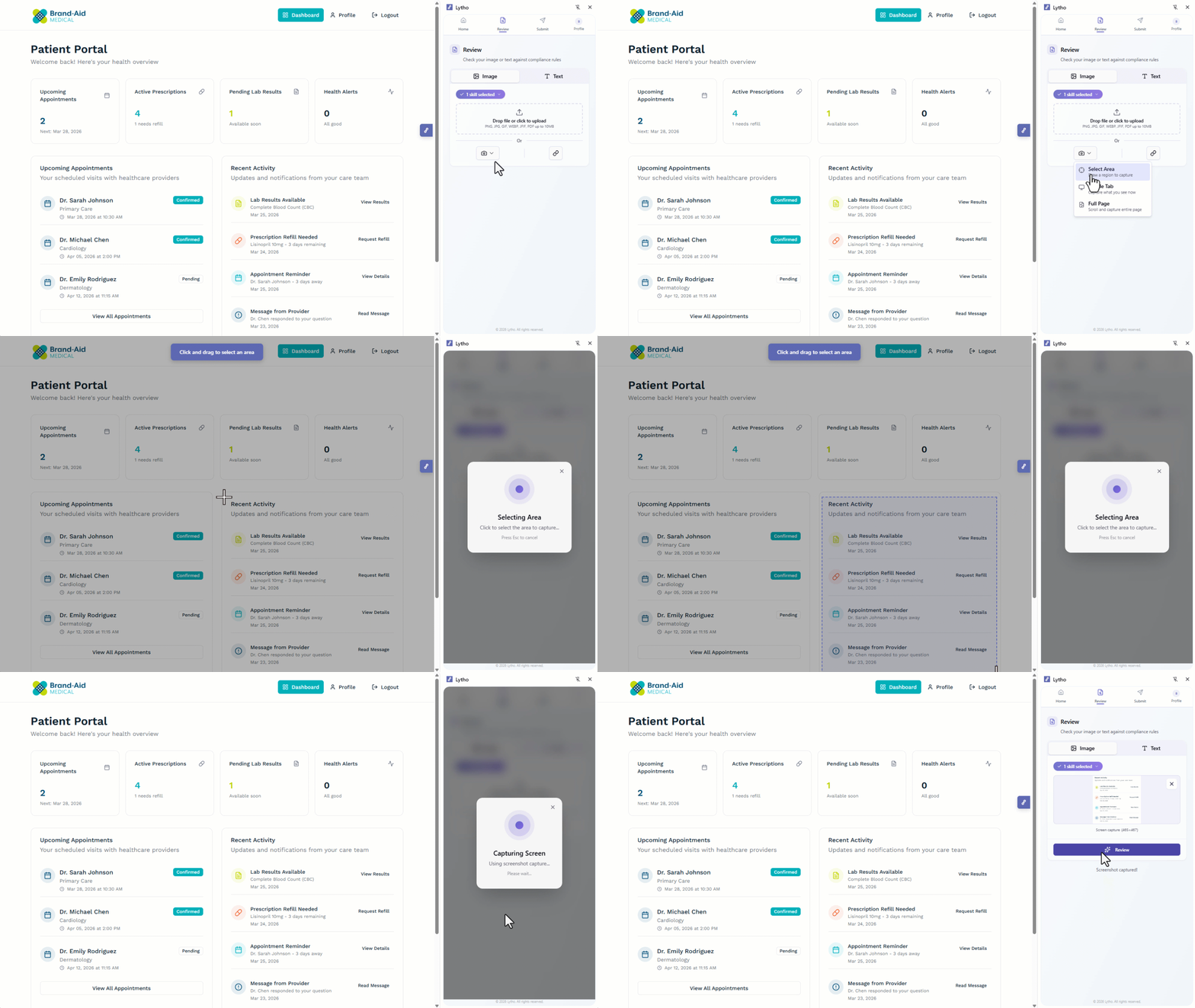
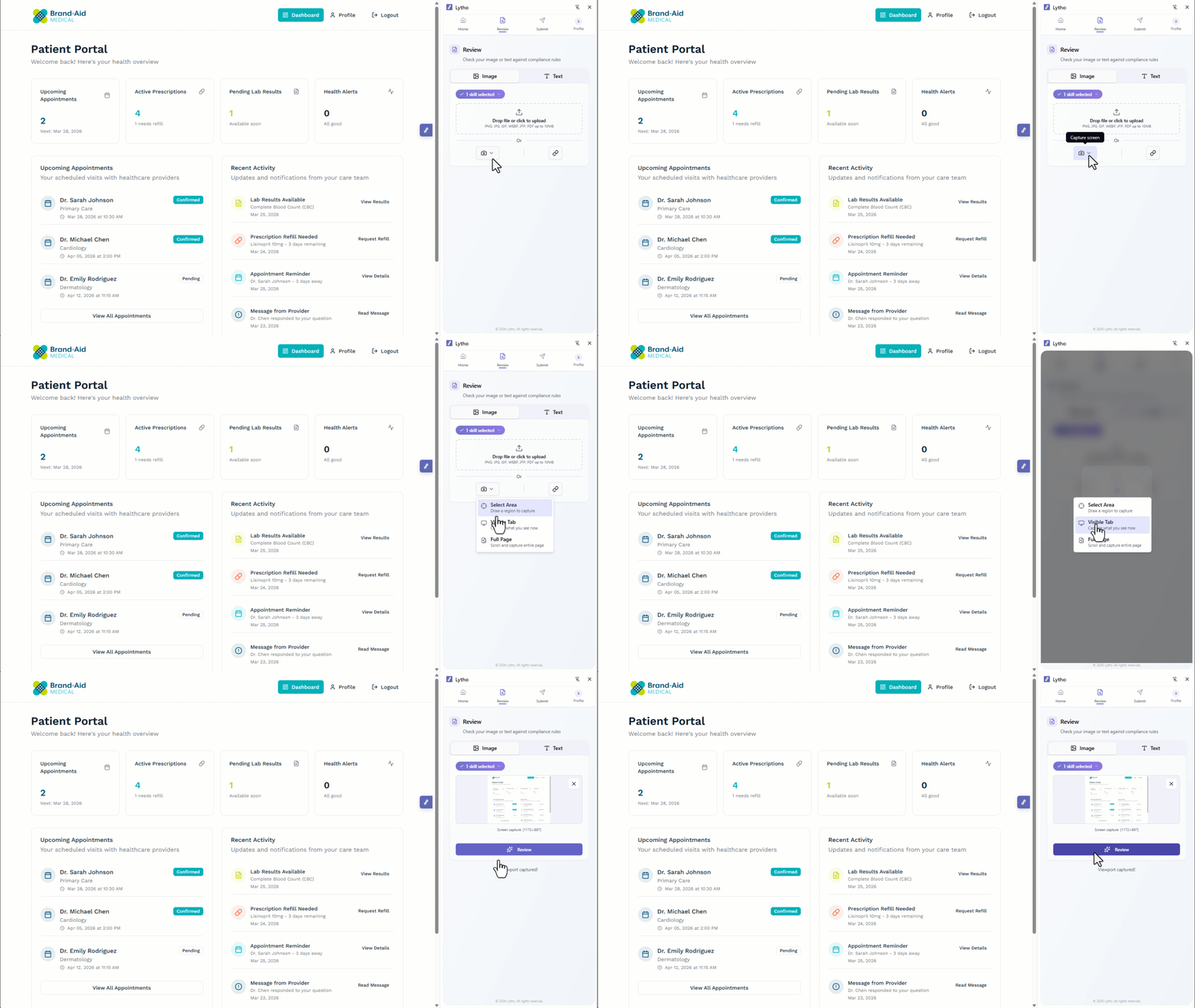
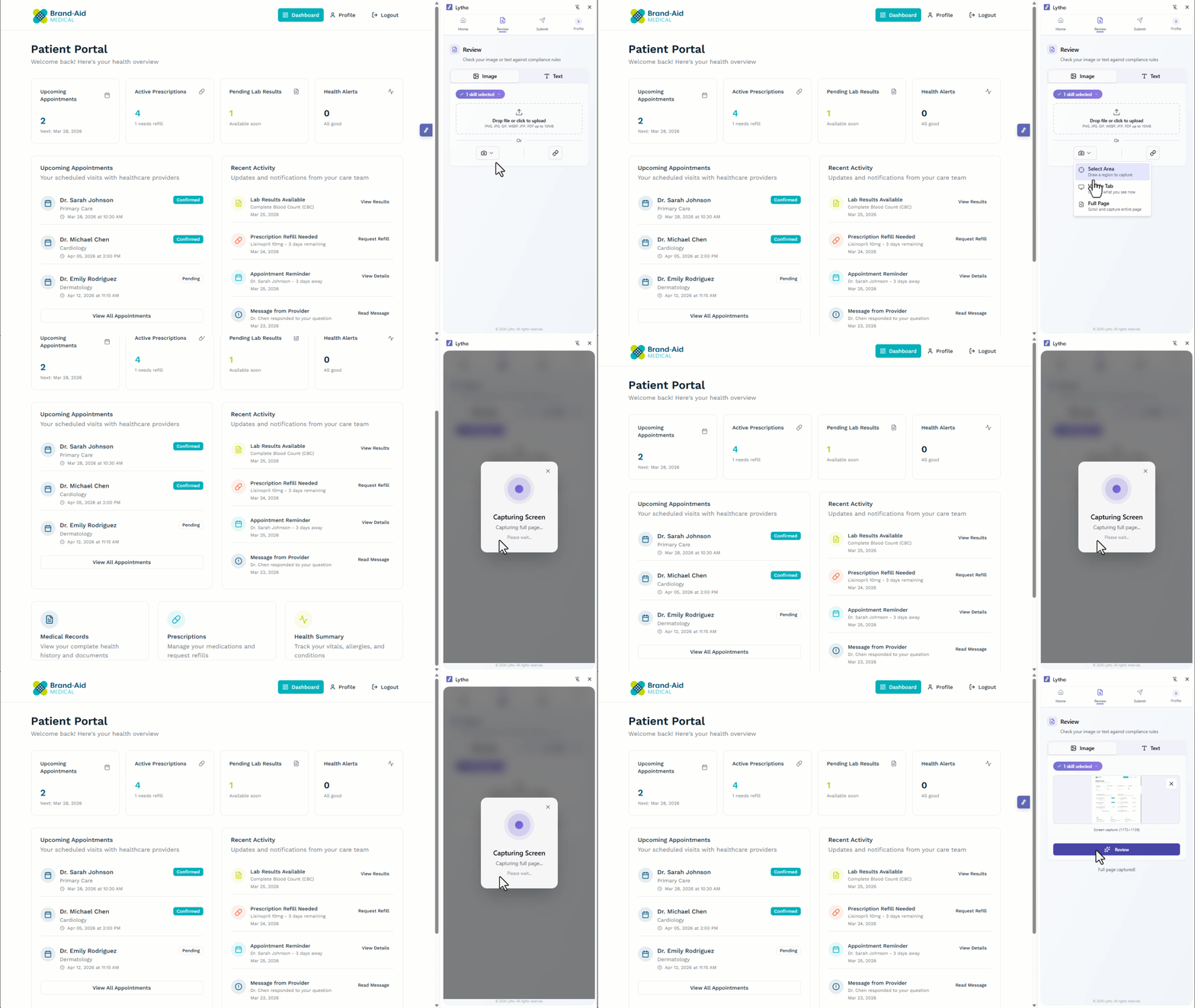
- Use the Screen capture icon:
- Select Area: Draw a region to capture a specific portion of the screen
- Visible Tab: Capture the content currently visible in your browser
- Full Page: Capture the entire scrollable page
- Select the Link icon to enter a URL
Lytho Pro Tip: While each submission includes one asset, you can continue adding to the same Proof by submitting additional assets separately.
Drag and drop
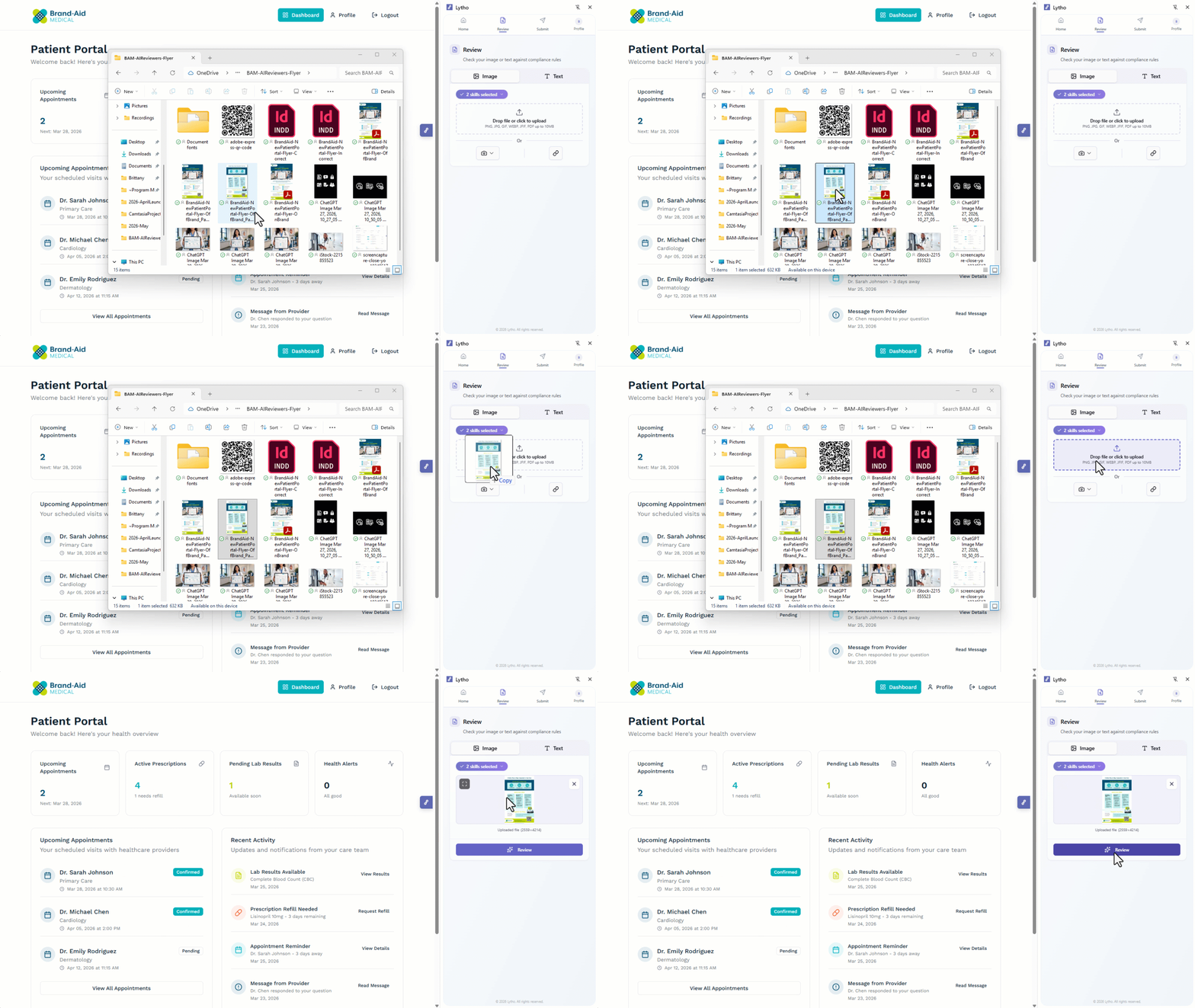
Upload from device
Screen capture > Select area
Screen capture > Visible tab
Screen capture > Full page
Where Can I Use the Lytho Chrome Extension?
The Lytho Chrome Extension works anywhere you can access content in your browser — so you can review or submit assets without disrupting your workflow.
Common use cases include:
- Office 365 (Web Apps) – Review Word documents, presentations, or shared files directly in your browser to catch issues before sharing
- Google Workspace – Validate content in Google Docs or Slides before publishing or stakeholder review
- Design Tools (Figma, Canva, etc.) – Capture mockups, layouts, and visual assets for compliance review without exporting files
- Canva users can also leverage direct integration to streamline review and submission workflows
- Email & Marketing Platforms – Review emails, landing pages, and campaign content before launch to avoid last-minute changes
- ChatGPT, Claude, or AI-generated content – Validate AI-generated copy to ensure it aligns with brand and regulatory standards
- Gated or internal websites – Capture and review content that isn’t easily downloadable or accessible outside your browser
Using the extension directly within these tools helps you catch issues earlier, reduce rework, and move faster — without needing to switch platforms or restart the review process.