AI Description Generation brings automated, accessibility-first metadata creation directly into your DAM, turning every asset into a richer, more discoverable experience with a single click. Designed to support WCAG 2.2 AA guidelines, this feature generates detailed, context-aware descriptions that improve accessibility compliance while enhancing searchability and usability across your library. Whether applied at upload or retroactively, AI Description Generation eliminates manual effort, standardizes quality, and ensures every asset is optimized with meaningful, narrative-driven metadata that helps teams find, understand, and confidently use content at scale.
Features described in this article are not included in all subscription plans. Interested in expanding your feature set? Contact the Lytho Support Team for further assistance.TABLE OF CONTENTS
Prerequisites
Before taking advantage of AI Description Generation, the following should be confirmed:
- Users have the appropriate Roles (DAM > Add Assets) to generate asset descriptions.
How It Works
When an asset is uploaded, the AI model identifies key features like objects, people, colors, or places. It uses its training data (millions of images it’s learned from) to recognize these elements. Based on this analysis, Lytho recommends a description that is a contextual match.
Lytho's AI model is pre-trained. We will not use customer data to further train the model. Using AI Description Generation
Select an asset, from the Asset Manager or Waiting Room, and navigate to the GENERAL tab.
Within the Asset Manager, you can select the asset in two ways. The first option is by clicking the circle in the top-left corner of the image, which opens the asset menu in the bottom-right.
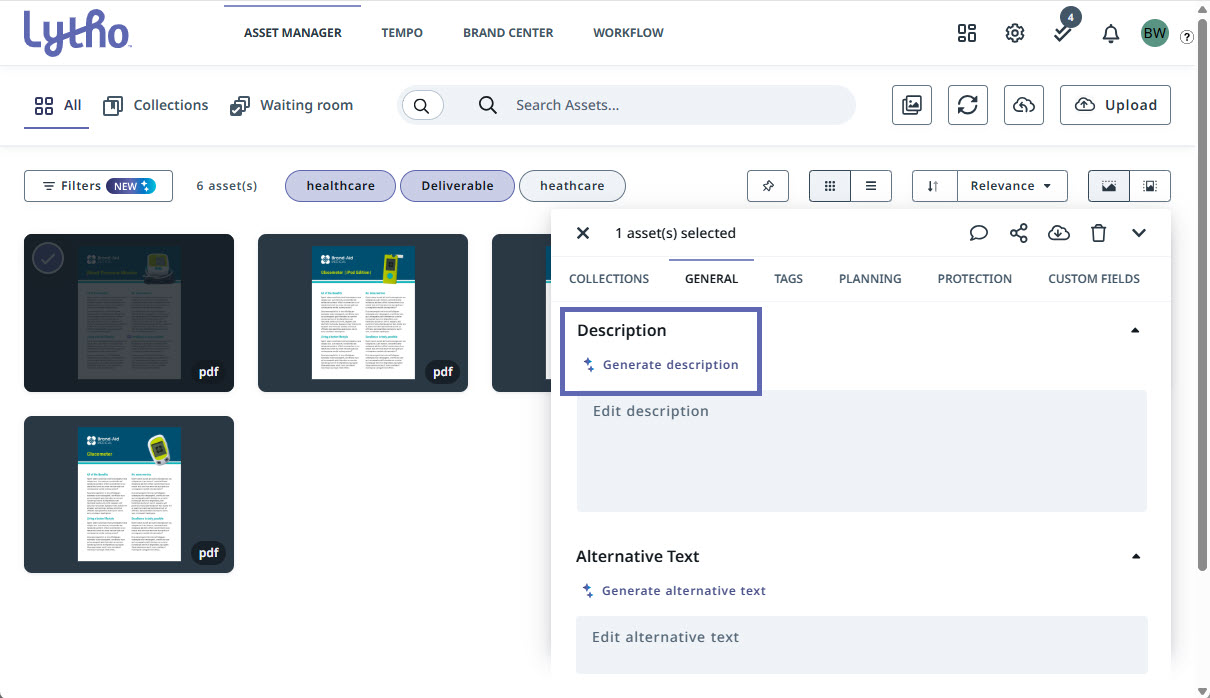
The second option is by clicking the center of the image to open a larger preview. Select All Details to access the GENERAL tab.
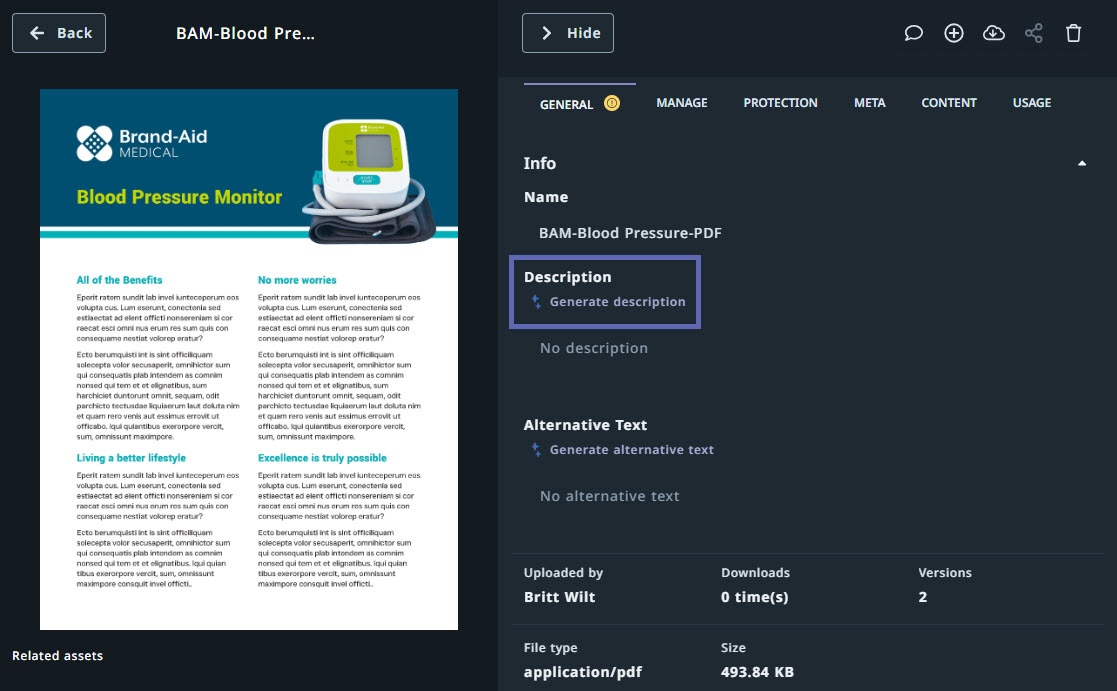
Within the GENERAL tab, click Generate description. AI will automatically create a description that aligns with WCAG AA 2.2 accessibility standards.
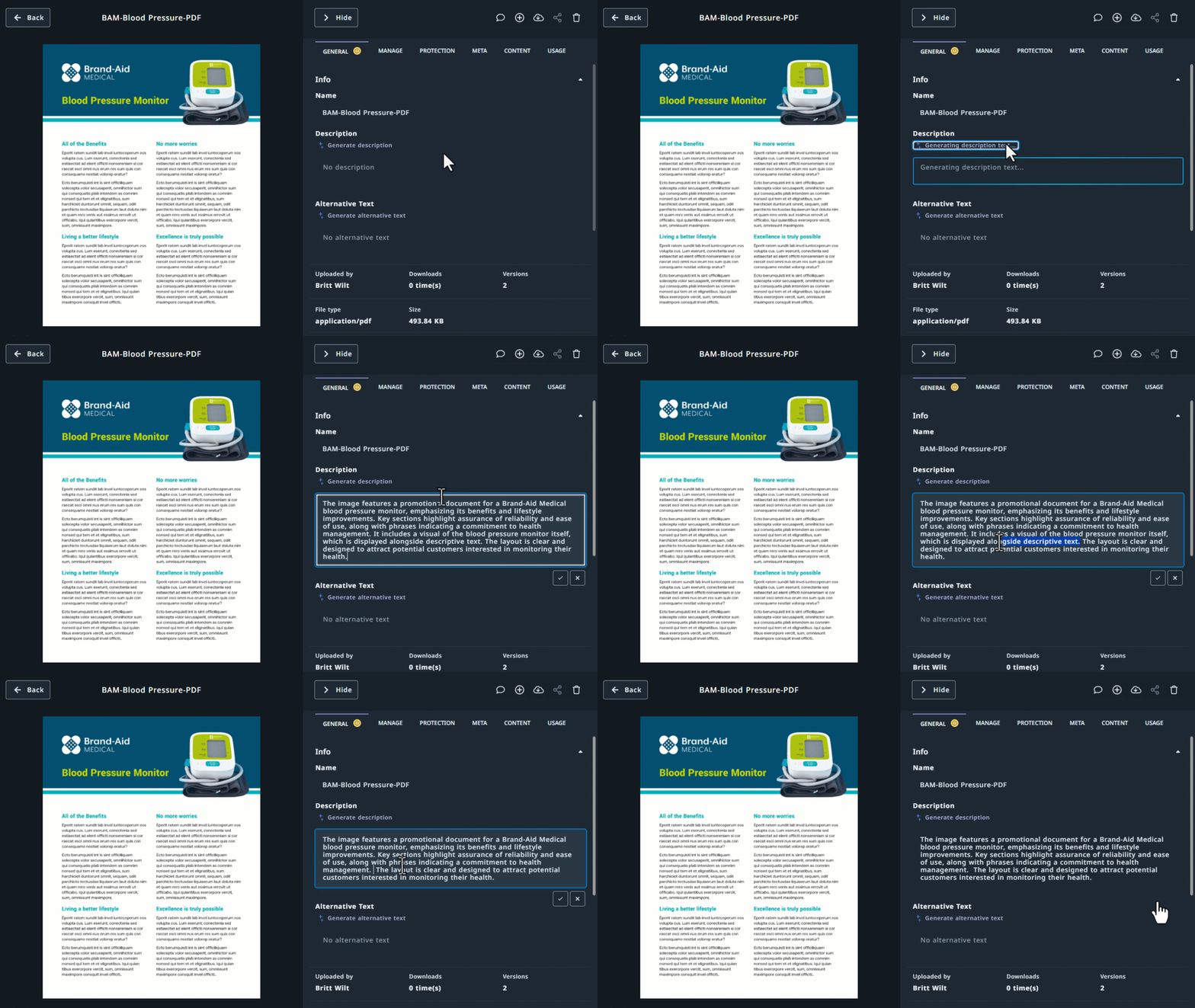
Once the asset description is generated, review it and either keep it as-is or edit it to better match your brand voice or provide additional context. Be sure to save your changes by selecting the checkmark icon.
File Types Supported
File types will impact the availability of AI Descriptions:
- Supported: JPG, PNG, HEIC, webp, INDD, PDF, PPT
- Not supported at this time: Audio, video and vector assets